This page is a translation of the Japanese page. Inquiries and support are handled in Japanese. The admin console is available in Japanese only; the employee app supports 日本語, English, Tiếng Việt, 中文(简体), 中文(繁體), 한국어 and नेपाली.
Internal chat
Internal communication
Chat, voice calls, announcements and schedules,
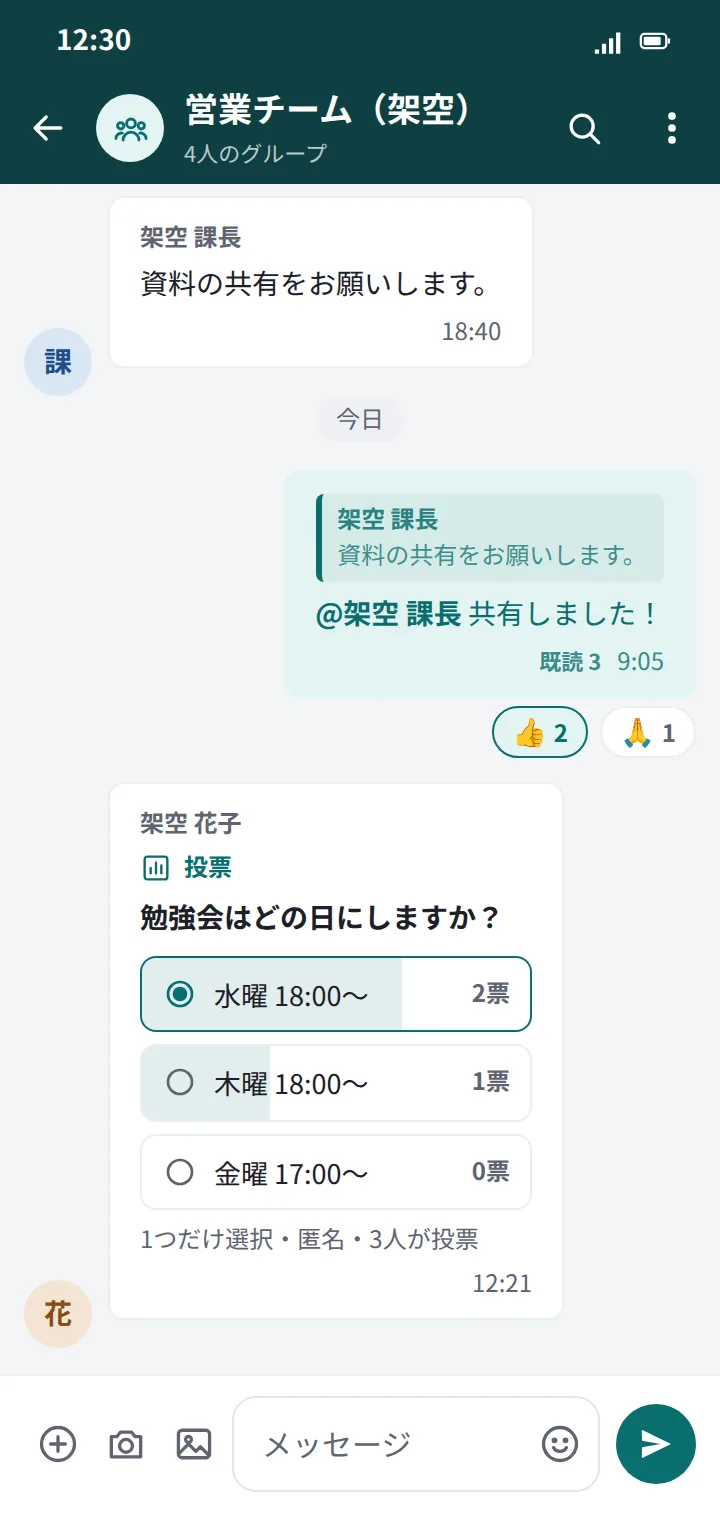
Note: Screens are for illustration purposes only (the data shown is fictional).

Key features of chat, calls and announcements
-
Chat
works the way you expect Direct and group chats, with the same single-line input as everyday messaging apps.
- Replies, mentions, reactions and read receipts
- Polls, scheduling, notes, location and files from "+"
- Up to 20 photos combined into an album
- Messages to people outside working hours are scheduled for the start of their next shift
Chat detailsRetention, read status, external users
- Quote replies, "@all", forwarding, announcements (pinned at top), unsend and re-edit
- Reply to scheduling polls with ◯△×
- Attached files are kept for 30 days from sending (save what you want to keep with Save to group or in company documents; one-year extended retention is also available)
- Read status shows "Read" in direct chats and "Read N" in groups. Can be hidden in company settings
- Save messages as tasks, schedule events or notes, and make requests to colleagues
- The conversation list is divided into Internal and Projects, with Mark all as read
- Group chats with invited external people such as customers' staff (only if enabled by the company)
- Map links appear as map cards. Send photos, files and maps via Share in other apps
-
Voice calls,
one-to-one and group Start from the phone button in a direct chat or from "Call" under "+".
- Group calls for up to 8 people. Only selected people are called
- Adding members during a call
- Call back from the call history
-
Announcements show
who has read them Deliver company announcements and internal documents, and record who has confirmed them.
- Remind only those who have not yet read it
- For required reading, records who pressed "I have read the contents" and when
- View attached PDF, Word, Excel and PowerPoint files in the app without downloading
- In Files in the app, you can browse company documents and files shared in groups together
Announcement detailsNotification list, My work, safety confirmation
- Remind employees who have not read required documents from the admin console
- New announcements and notifications for you appear on the app home. Review them all in the Notifications list
- My work (わたしの仕事) shows your tasks, pending approvals, assigned issues and email replies to check, in order of deadline
- Safety confirmation after earthquakes and disasters
Forwarding, albums and drafts
Keep work photos and files in projects.
Select and forward together
Forward multiple messages as one chat history. Up to 10 recipients.
Photos in albums
Up to 20 photos are combined into one album, with a single notification.
Drafts and the unread line
Unfinished text is kept per conversation. Start reading from the "Unread messages below" line.
Organize the list
Press and hold to mark as unread, mute, hide or delete. The other person's screen and company records are kept.
Save to project
Keep photos and files in a project. They are not deleted after the 30-day retention period.
Turn messages into other records
Create issues, tasks, requests and interaction history entries directly from chat or email.
Related records
Links records of any type. Shown only to people authorized to view them.
Search everything at once
Search people, business partners, business documents, chat, email and more at once. Records you are not authorized to view are not shown.
Colleagues' schedules
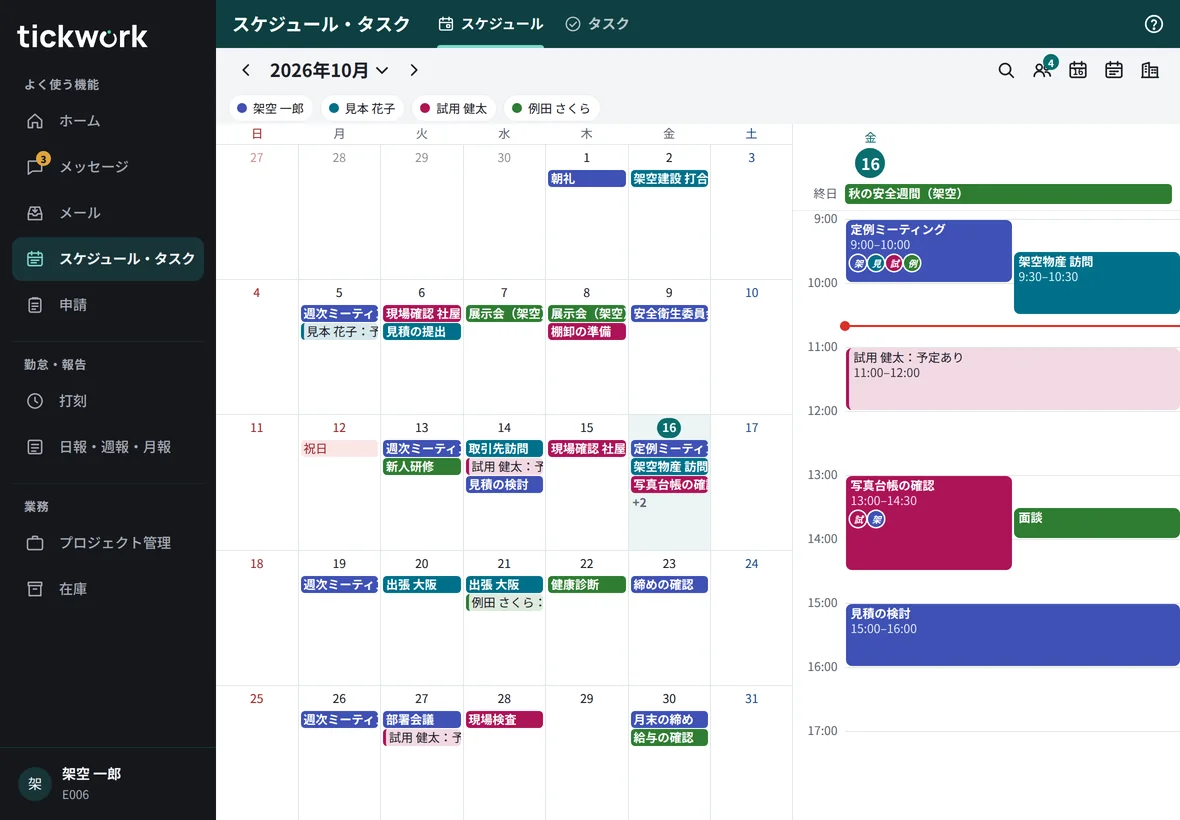
Switch between month, week and day, and overlay selected colleagues' schedules in color.
- For colleagues' events you are not part of, only Busy times are shown
- Meeting room and equipment booking, event invitations and RSVPs
- Payment due dates, paydays, qualification expirations and more also appear as view-only tags
Schedule display detailsColors, tagged items
- Each employee has a fixed color that is the same on every device. A legend of names is also shown
- Tagged items: scheduled task completion dates, milestones, invoice payment due dates, paydays, filing and payment deadlines, qualification expirations and more (only items you can view; display can be chosen per item)
October 2026
Events displayed: 29
Note: Screen image (fictional events). Press a name button to show or hide that person's events.
Switch months, days and people
Scroll to switch the smartphone screens in sequence.
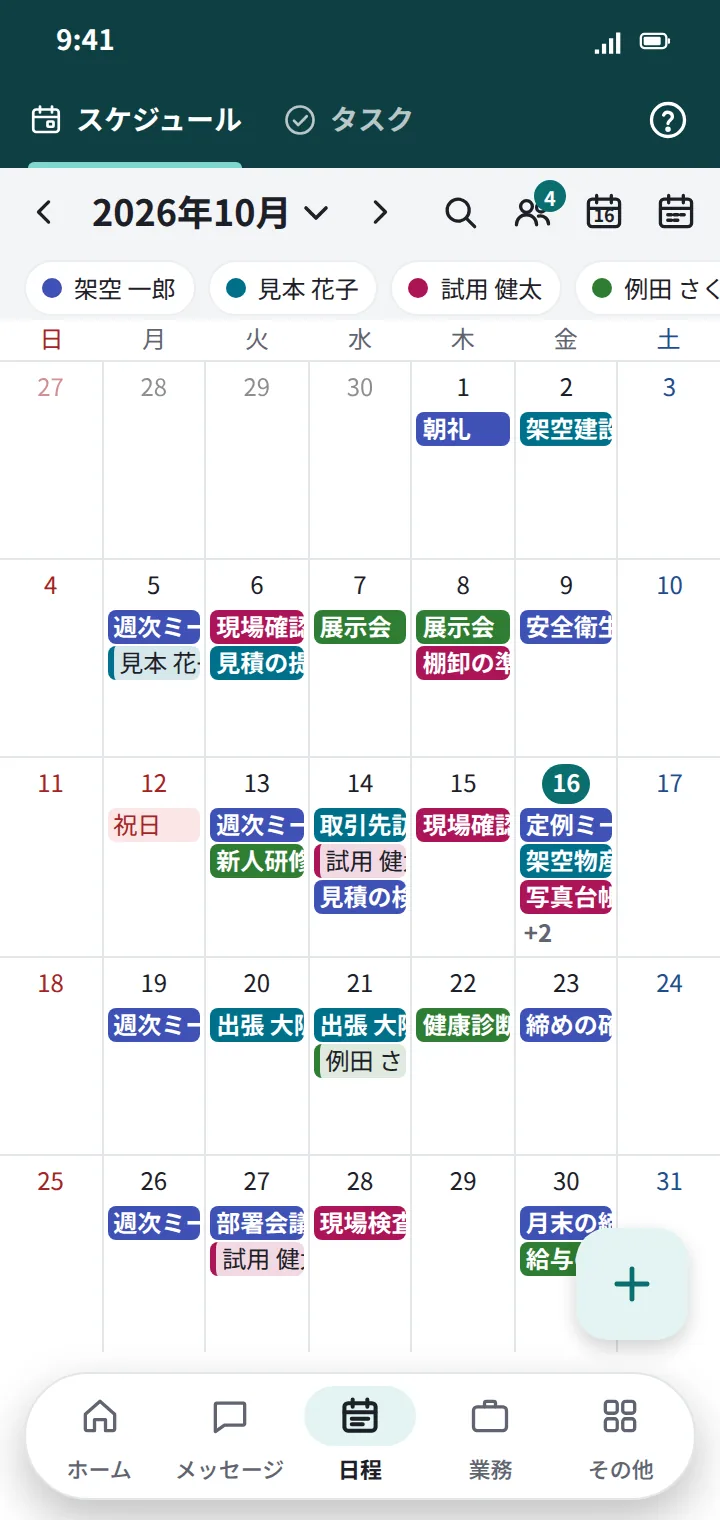
- Month
Full-screen month grid
Events appear as bands in the creator's color; days that overflow show +2.
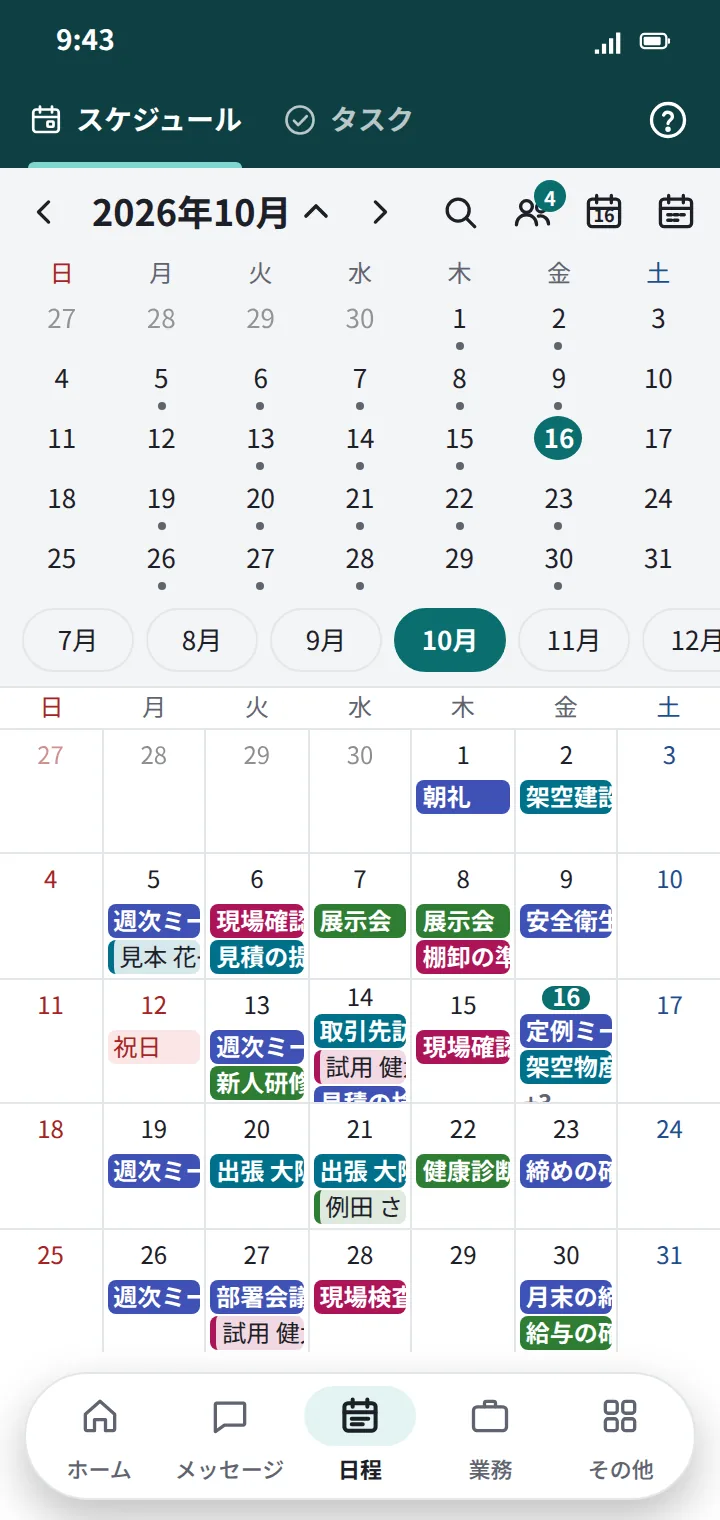
- Select a month
Tap the month and year to jump
A small monthly calendar opens so you can jump months ahead.
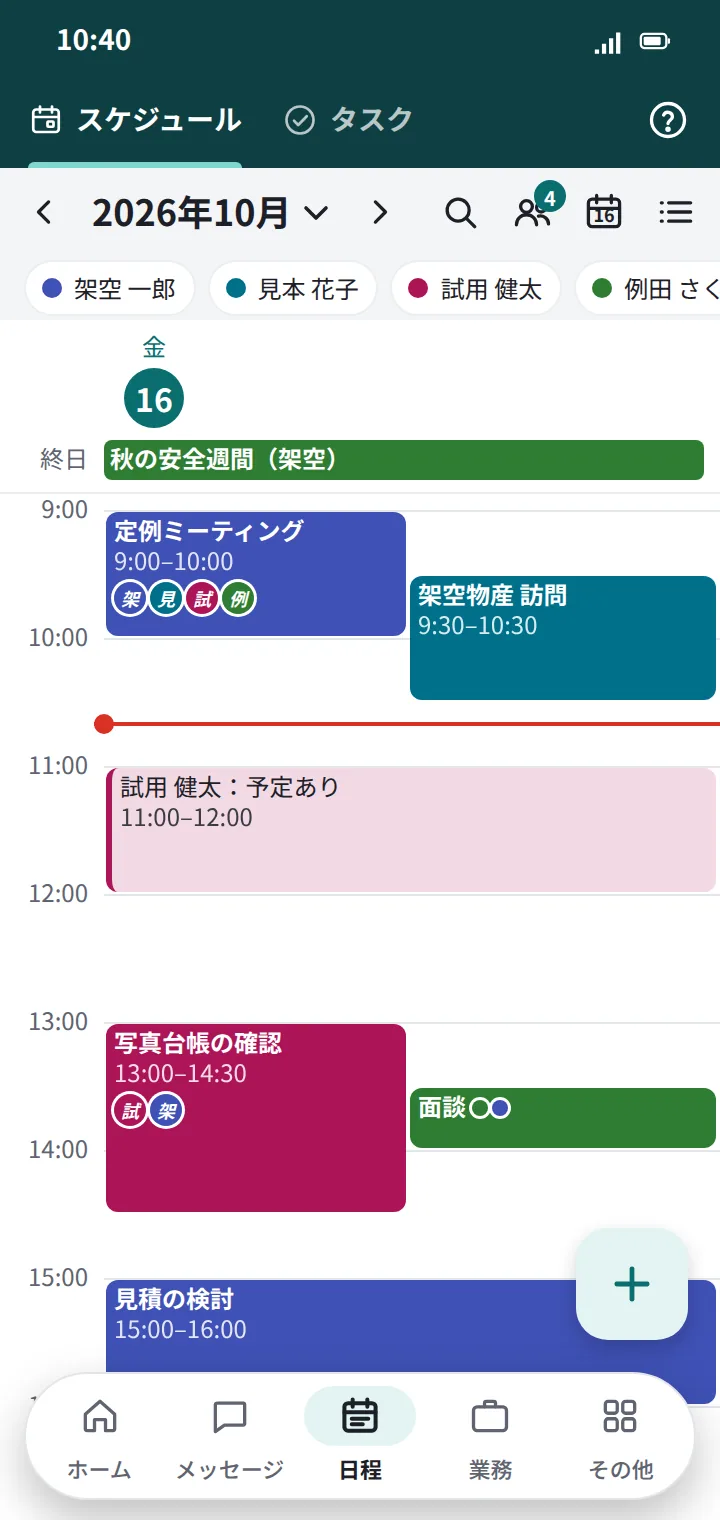
- Day
Overlaps visible at a glance in time slots
Overlapping events are shown side by side. Press and hold an open time to create an event.
- People to display
Overlay colleagues' schedules
Overlays selected colleagues' schedules, each in their own color.
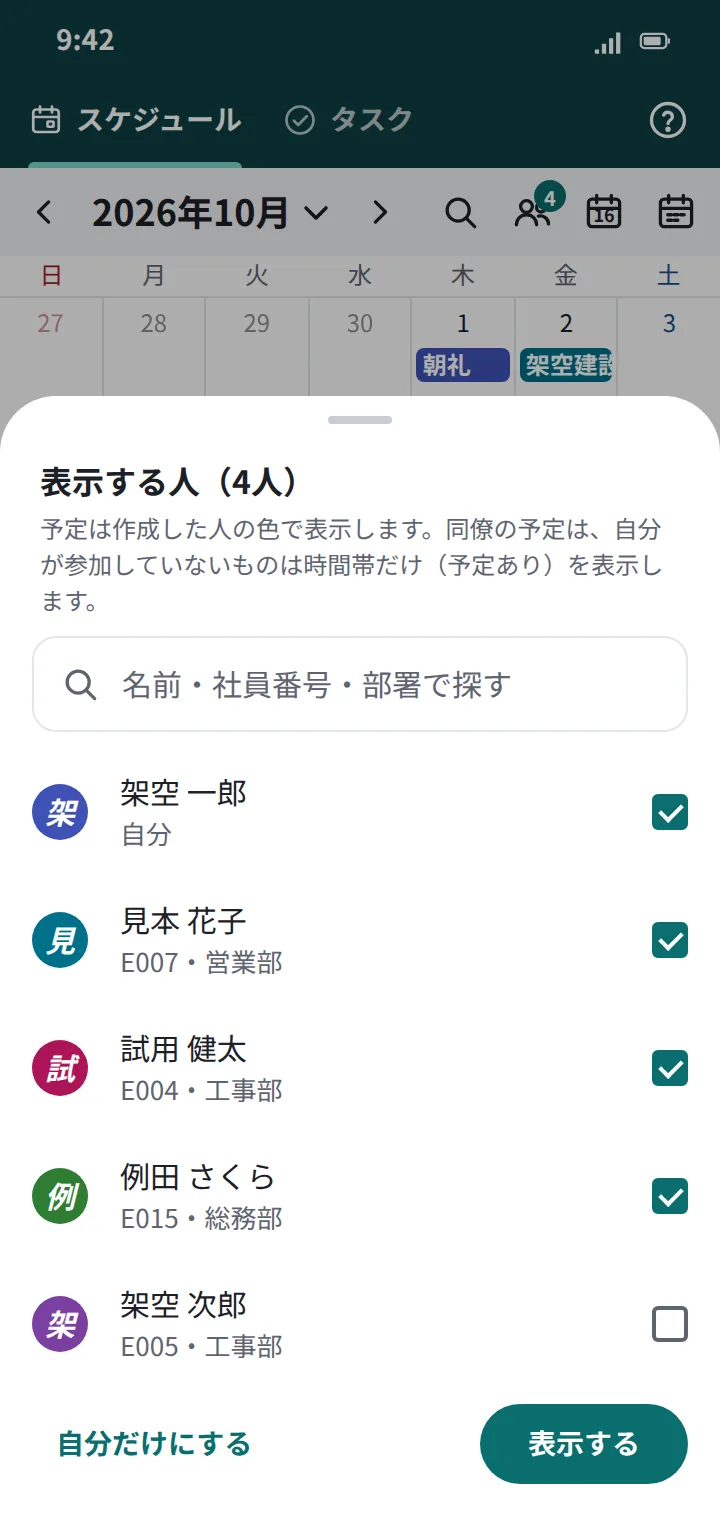
Note: Screens are for illustration purposes only (the data shown is fictional).
Send and receive company email
Use your company domain address in the app and the web version. Signatures are added automatically from the company template.
Recipient suggestions and unsending
For 10 seconds after sending, Undo returns it to drafts. You can also schedule the send time.
Signatures from company templates
Name, company mobile number and location address are filled in automatically for a consistent look.
Snooze and follow-up reminders
Later returns a message to the inbox, for example tomorrow morning. You are notified if no reply arrives by the due date.
Swipe and bulk actions
Swipe right for read/unread, left to archive. Press and hold to move or delete in bulk.
Shared inboxes by assignee and status
For shared addresses such as info@, assign a person and status to each email to prevent duplicate replies.
Save attachments as received documents
Received invoices and other documents can be registered with Save as received document (Electronic Bookkeeping Act) (受領書類として保存(電帳法)) (for authorized users at companies using business documents).
Note: This feature connects to mailboxes on your contracted mail server. Free email services and mobile carrier email are not supported. For details, see Company domain email.
After a disaster,
Send from the admin console home or from Work in the app.
-
Send
Choose "Everyone", "People working now" or a location, and deliver as a high-priority notification that reaches employees even if they have turned notifications off.
- Requests can be sent by HR, management and system administrators, and by location managers (for their own locations only)
-
Respond
Just one tap: "Safe", "Injured" or "Need help". Location and a short note can be added.
- "Injured" and "Need help" responses are notified immediately to administrators and location managers
-
Check
Automatically updates the list of non-respondents and re-notifies only them.
- The phone numbers and emergency contacts of people who have not responded are displayed and can be called with a tap (administrators and location managers only)
- When the situation settles, select "End safety check"
Communicate with partner companies and contractors through per-company chat and voice calls (Project management).
Please feel free to
We will ask about your number of users and the features you need, and advise you on how to proceed with implementation.
- Free 30-day trial
- No card required
If you would like to review materials first, please request materials (we will send a PDF by email).