This page is a translation of the Japanese page. Inquiries and support are handled in Japanese. The admin console is available in Japanese only; the employee app supports 日本語, English, Tiếng Việt, 中文(简体), 中文(繁體), 한국어 and नेपाली.

Tickwork Inventory & Orders

Inventory and orders in one record

Scan barcodes with a smartphone from stock in/out to shipping.

Internal chat included (with calls, announcements and schedules)The first three steps and pricing
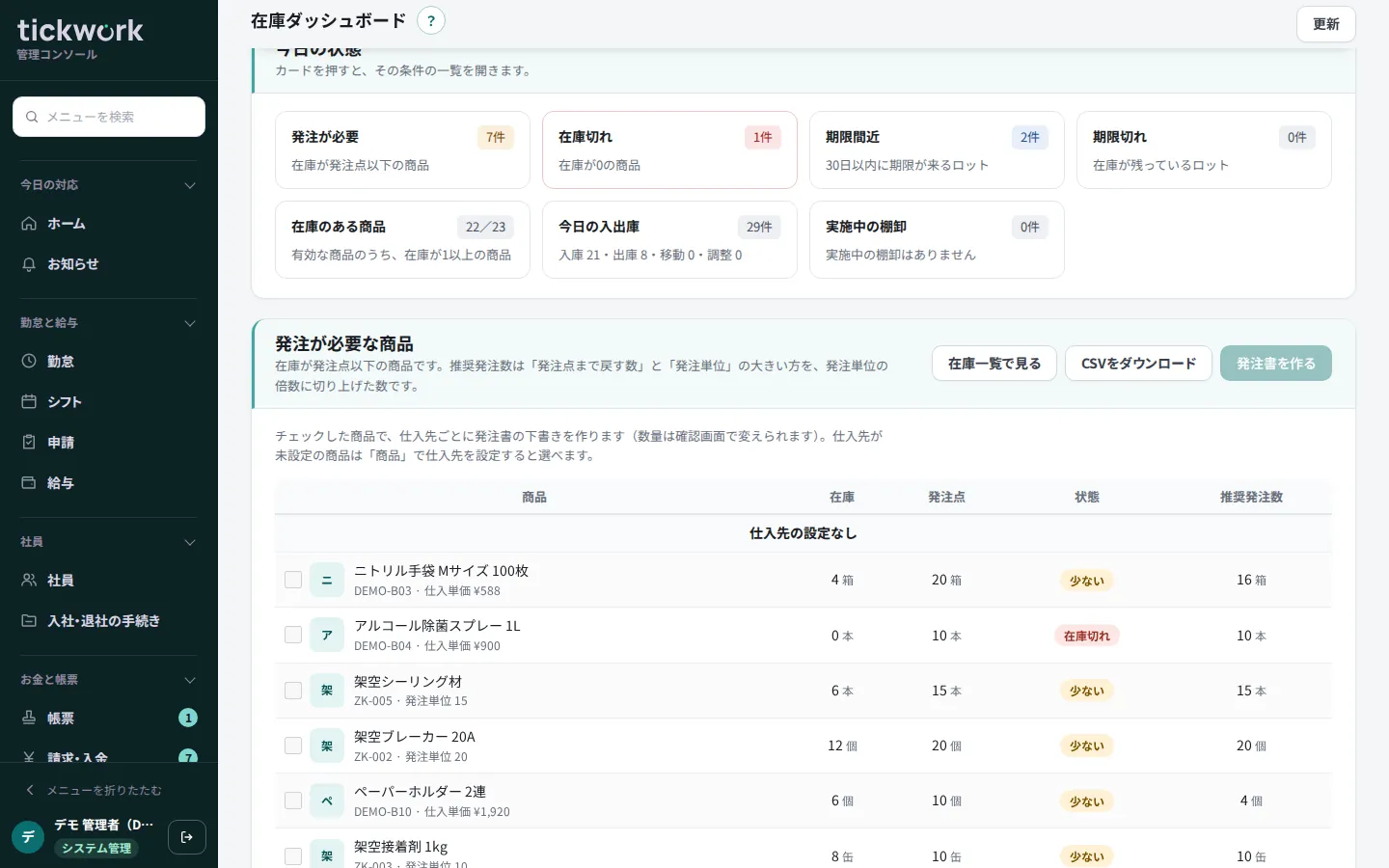
Inventory dashboard in the admin console, showing count cards such as “Reorder needed”, “Expiring soon” and “Today's stock movements”, a list of products that need reordering (stock, reorder point and recommended order quantity), lots nearing expiry and recent stock movements

Note: Screens are for illustration purposes only (the data shown is fictional).

The first three steps

After you apply, you can start using the service with these three steps, without any other setup.

  1. Register a productYou can start with just the product name (the product code is assigned automatically).
  2. Record one stock inEnter your current quantities, also possible with smartphone barcode scanning.
  3. Record one stock outStock quantities and history are recorded automatically.

Tickwork Inventory & Orders pricing

  • Up to 10 users¥6,000/month¥6,600 incl. tax
  • 11–30 users¥12,000/month¥13,200 incl. tax
  • 31–50 users¥18,000/month¥19,800 incl. tax

Prices exclude tax. Annual payment equals 11 months of the monthly fee. If you use two or more modules, Tickwork All-in-One offers better value.

From order to shipment, in a single workflow

  1. 1STARTCustomers order on a smartphoneCustomers can place orders at any time from their dedicated ordering page.
  2. 2Review sales ordersIncoming orders appear in a list. Issue shipping instructions while checking stock.
  3. 3Pick items with a smartphoneScan product barcodes with a smartphone to prevent picking errors.
  4. 4Ship and issue delivery notesShipments update inventory, and delivery notes are issued directly.
  5. 5Inventory at a glanceCheck stock by warehouse and see low-stock items immediately.
GOALInventory and orders always match, and shipping errors are eliminated
Barcode scanning

Barcode scanning with just a smartphone

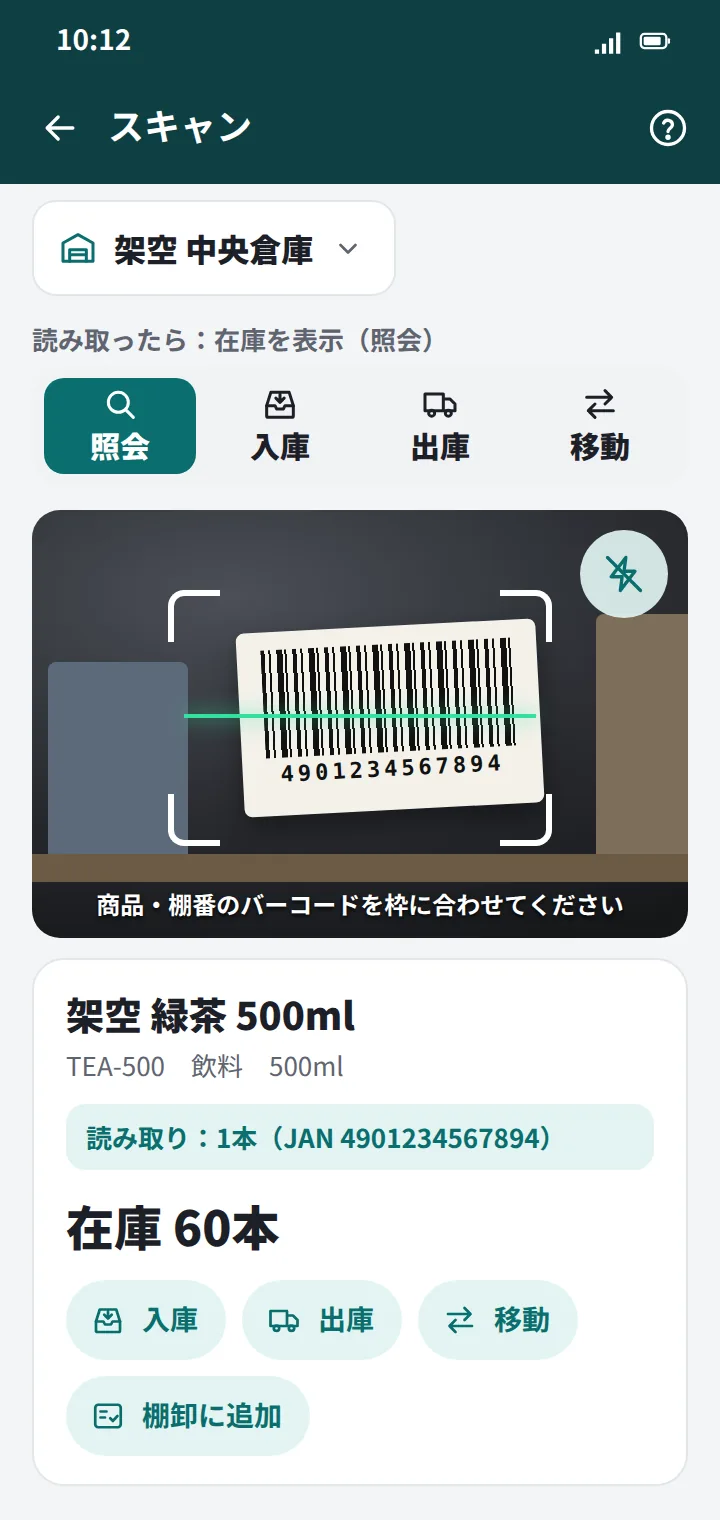
Scanning shows the stock quantity, and you can record stock in and stock out on the spot. No dedicated device is needed.

  • Saves as pending in warehouses without signal and sends later
  • Selecting a site (project) at stock out totals material usage and cost
  • Only employees permitted by the company to handle inventory can use it
  • JAN/EAN (13-digit and 8-digit)
  • ITF-14
  • GS1-128
  • GS1 DataMatrix
  • GS1 QR
Barcode scanning screen of the employee app (switching the action after scanning, the scanned product and stock quantity, and buttons such as “Stock in” and “Stock out”)
Scan Check stock Stock in / out

Note: Screens are for illustration purposes only.
Purchase orders and expected arrivals

Before stock runs out, order from each supplier

Set a reorder point (the quantity below which you reorder), and products that need ordering appear in a list.

  • Purchase orders in bulk by supplier

    Drafts purchase orders by supplier from checked products.

  • Prevent double orders with expected arrivals

    Shows quantities not yet received as expected arrivals.

  • Stock out lots nearest expiry first

    Lots nearing expiration appear under "Expiration alerts".

  • Daily morning inventory notifications

    Notifies you of products that need ordering and lots expiring within seven days.

Supplier invoicesAI tool

Match received invoices against purchase orders and arrivals

AI reads PDFs and photos and shows differences in quantity, unit price and tax rate. Register after review.

  • Up to 20 pages free each month, then ¥11 per page (incl. tax) (Pricing)
Collaboration with suppliers

Delivery date responses and purchase unit prices, right beside the purchase order

  • Delivery date replies via link

    Suppliers can reply with delivery dates for each line without logging in. Replies go into expected arrivals.

  • Know about delivery delays in advance

    You are notified when a reply is later than the requested delivery date of the sales order.

  • Purchase unit price history

    Check the previous, average and lowest unit price by supplier.

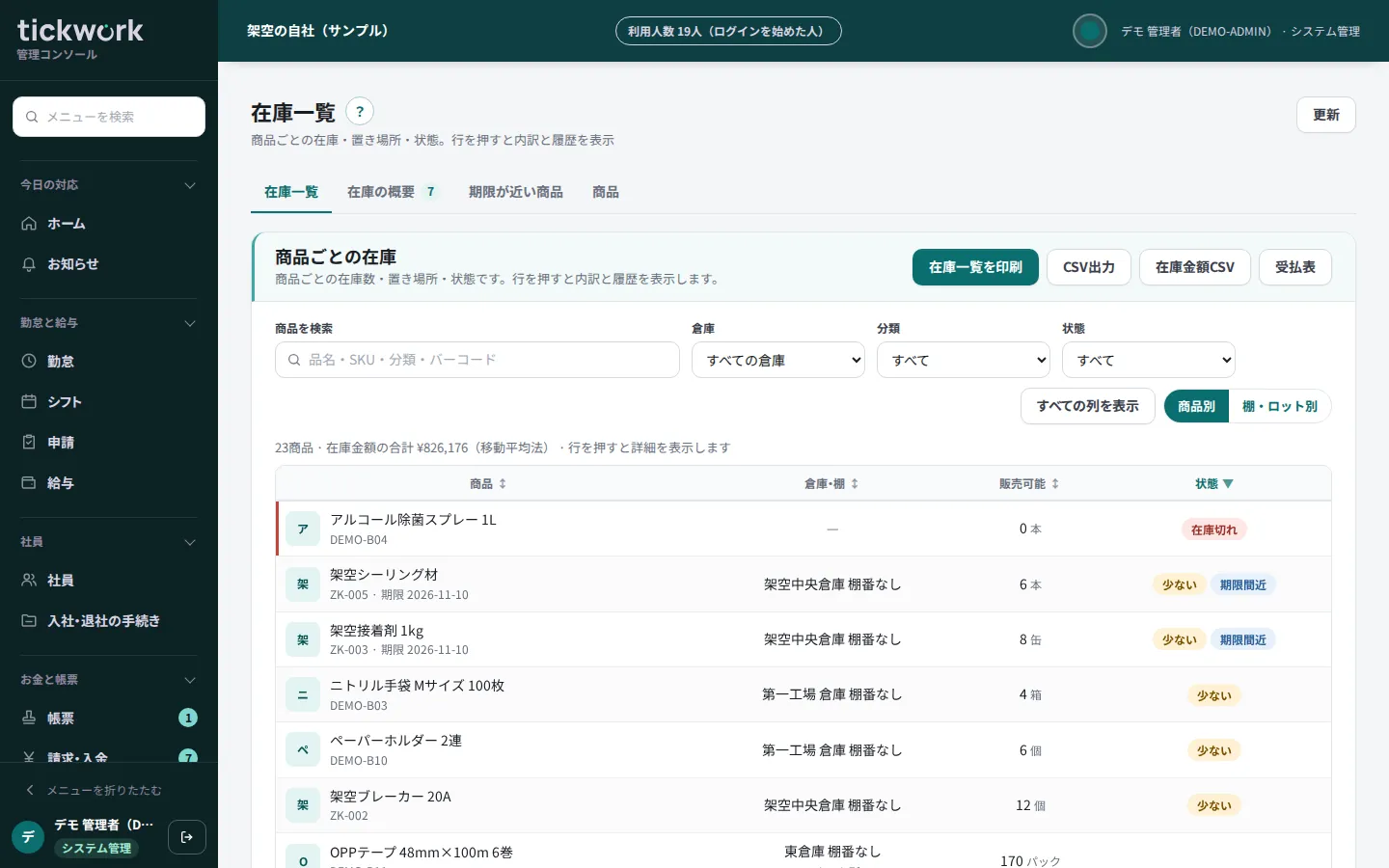
Inventory value and stock ledger

Not only stock quantities but also monthly values

Calculates inventory value by product and warehouse using the moving average method. Monthly stock ledgers can be exported as CSV.

  • Stock and movement records by warehouse, shelf number and lot
  • Inventory value is an estimate for management (consult your tax accountant on valuation for financial statements)
Inventory list in the admin console, showing stock quantity, reorder point, status (low, expiring soon) and inventory value for each product, with “Inventory value CSV” and “Stock ledger” buttons at the top

Note: Screens are for illustration purposes only (the data shown is fictional).

Product details

See how many you can ship after open orders

  • Quantity available to promise

    Shows on hand + expected arrivals − order backlog by warehouse, with the formula.

  • Order backlog breakdown

    Shows unshipped sales orders by delivery date, ready to open.

  • Stock after each record

    Shows stock at that point for each stock in/out record.

Stocktaking and label printing

Review stocktaking differences in quantity and value

Print count sheets or scan with a smartphone to count. When finalized, review differences from the books in the variance report.

  • Print internal code labels for products without barcodes (A4, 62×29 mm thermal labels, etc.)
  • Labels are created as PDF or image (PNG). You can also print as many as received
Bundles, transfers and inventory analysis

From bundled products to inventory analysis, at a glance in the admin console

Analysis results are guidance. Reorder points and similar values are applied after review.

  • Bundles and assembled products

    Calculates sellable quantity from component stock.

  • Transfers between warehouses

    Records stock being moved as "In transit".

  • Reorder point guidance

    Calculated from usage and lead time.

  • Slow-moving stock and ABC analysis

    Identify products that need closer management.

  • Lot tracing

    Trace when stock arrived and which customer it went to.

From order to tracking number, in one continuous flow

Connects sales orders, invoices and shipments in one record. Scroll to switch screens.

  1. 1

    Customers order on the site

    Customers log in with IDs you issue and order at their own prices.

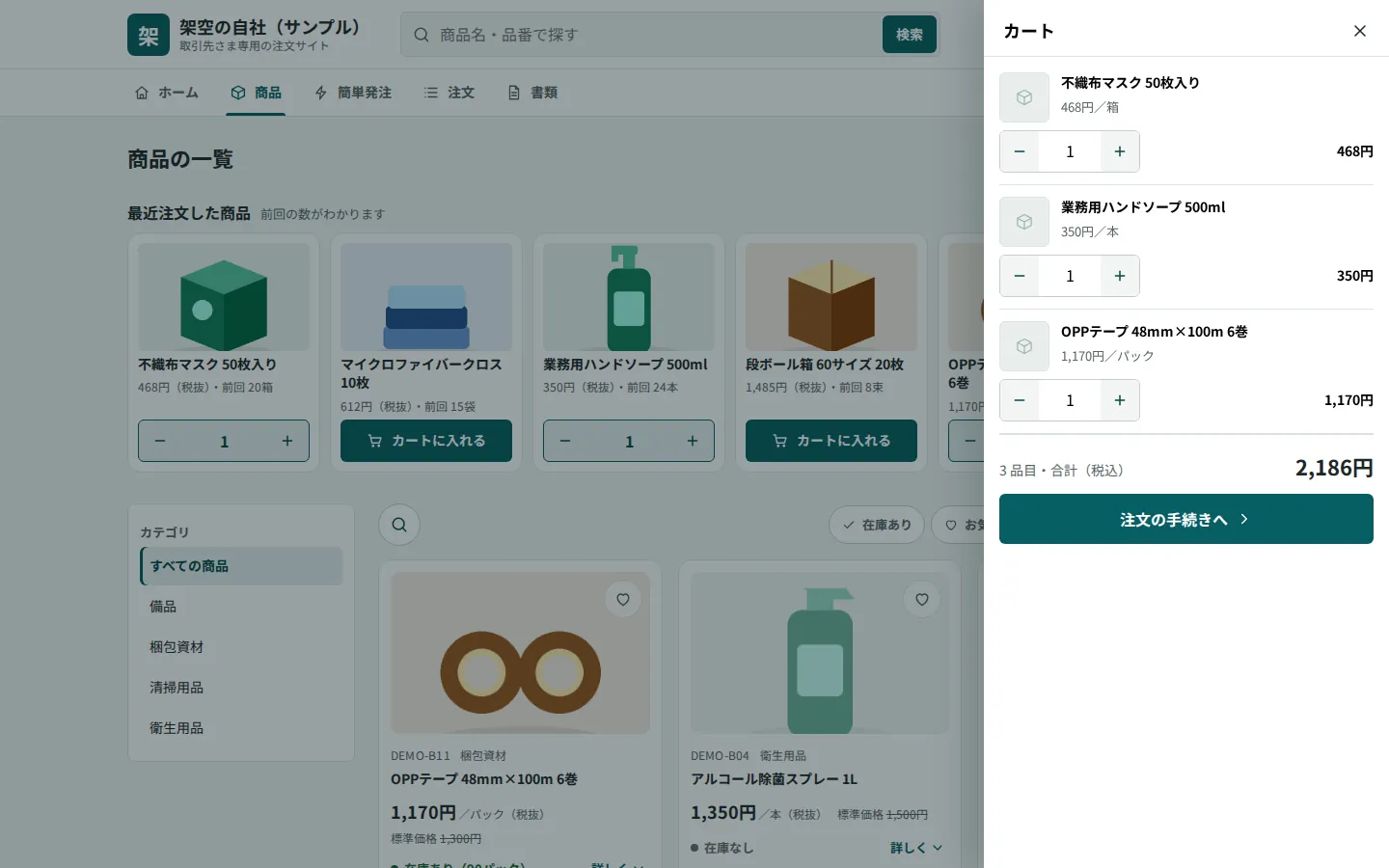
    Customer
    Cart on the customer site, with quantity − and + buttons, the total and a Proceed to order button
  2. 2

    Quotations issued automatically

    For customers on prepayment terms, a quotation is issued upon acceptance.

    Your company → Customer
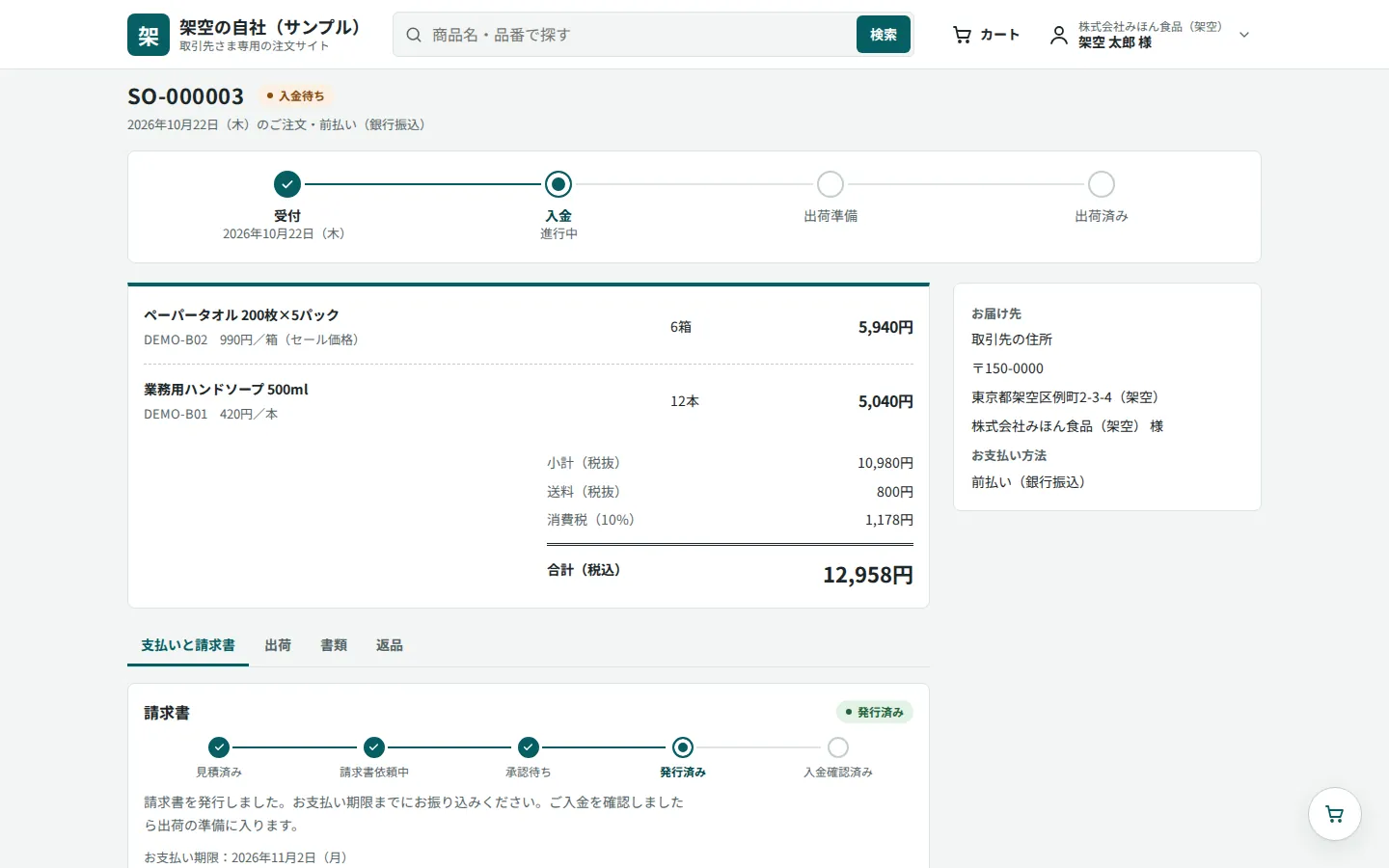
    Order details on the customer site, showing progress: quoted, invoice requested, awaiting approval, issued and payment confirmed
  3. 3

    An invoice request arrives

    The sales order list shows "Awaiting approval" and the next action.

    Customer → Your company
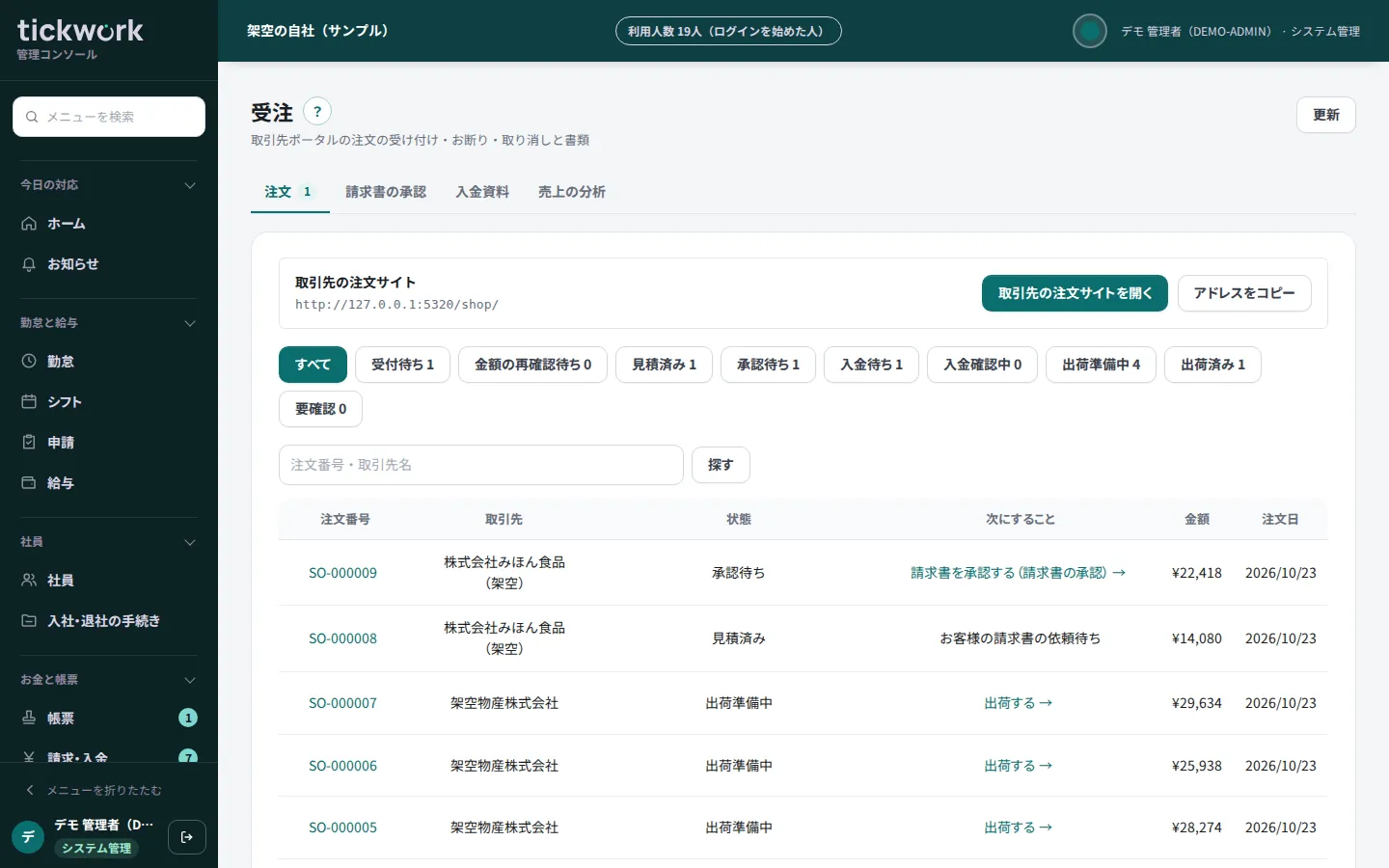
    Sales order list in the admin console, showing the count for each status, and the order number, customer, status, next action and amount
  4. 4

    Approval by designated approvers

    Company-designated approvers can also approve from the employee app.

    Your company
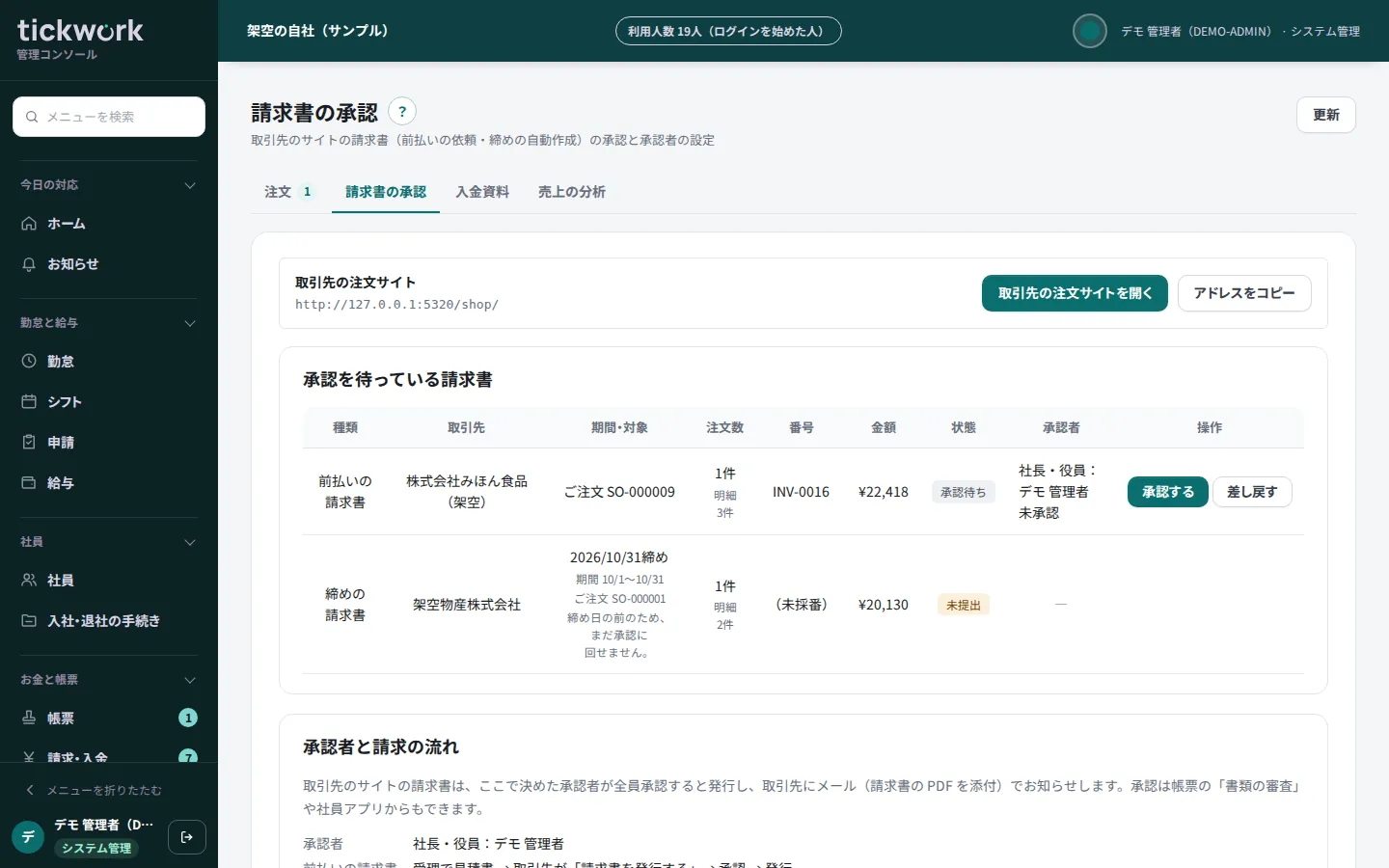
    Invoice approval in the admin console: invoices awaiting approval with Approve and Return buttons
  5. 5

    Issue invoices to customers

    Notifies by email with a PDF. Credit sales are consolidated the day after the closing date.

    Your company → Customer
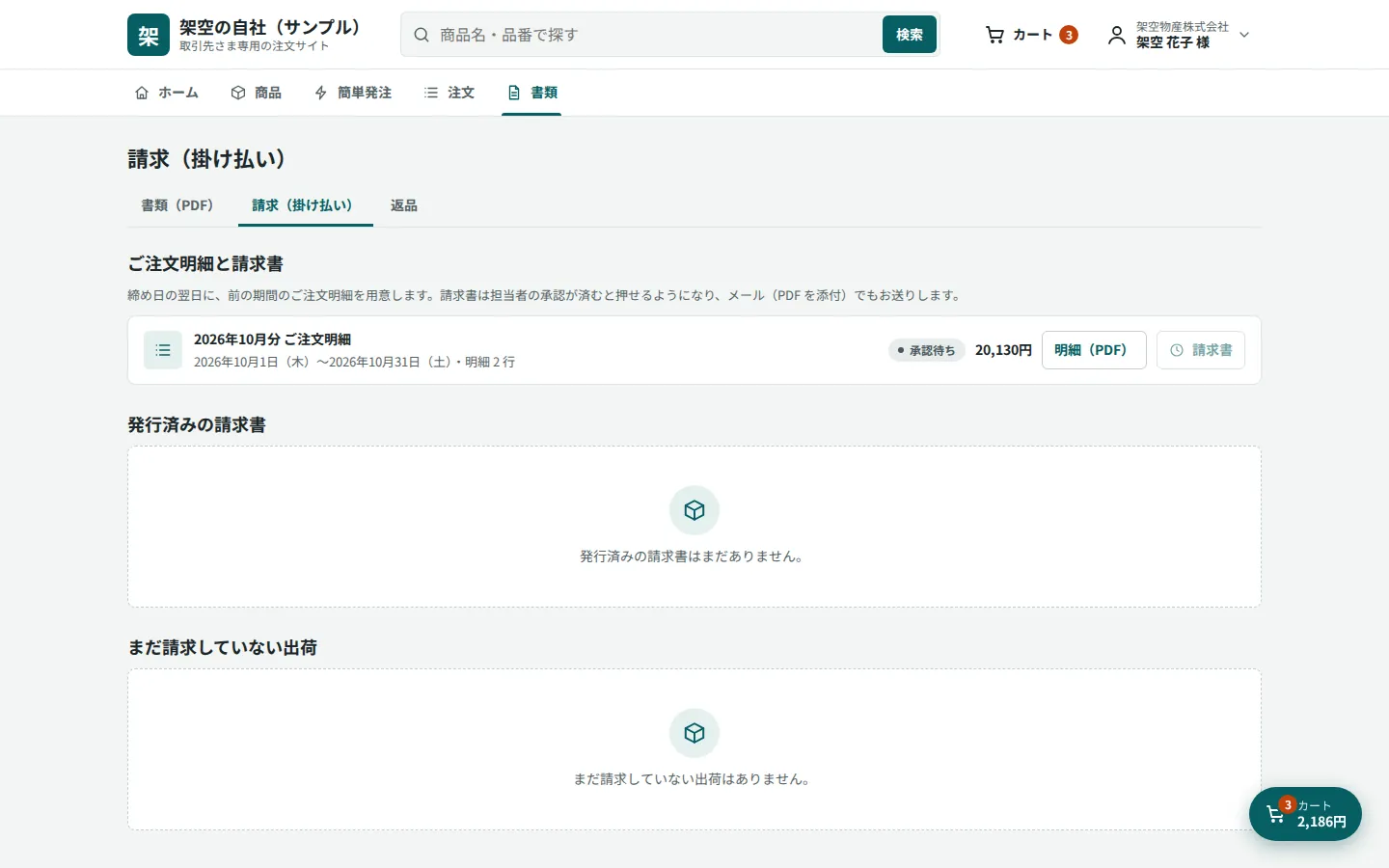
    Invoicing on the customer site (credit terms): order statement and issued invoices
  6. 6

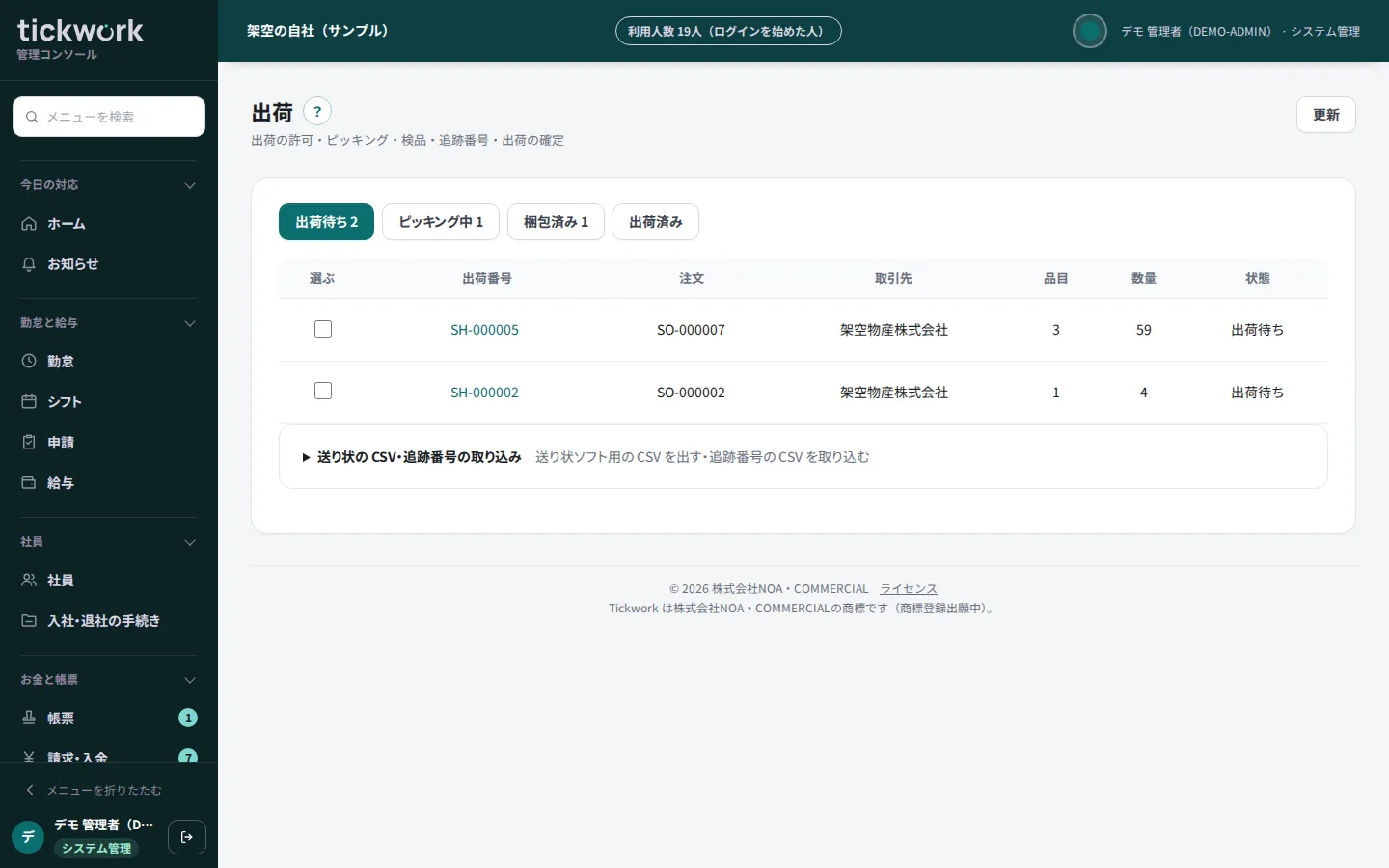
    Ship from the warehouse

    Inspect by barcode and export shipping label CSVs for Yamato Transport, Sagawa Express and Japan Post.

    Your company
    Shipping in the admin console: Approved for shipment, Picking, Packed and Shipped, with shipping label CSV export
  7. 7

    Tracking numbers shared with customers

    Import a tracking number CSV to show it on the customer's screen.

    Your company → Customer
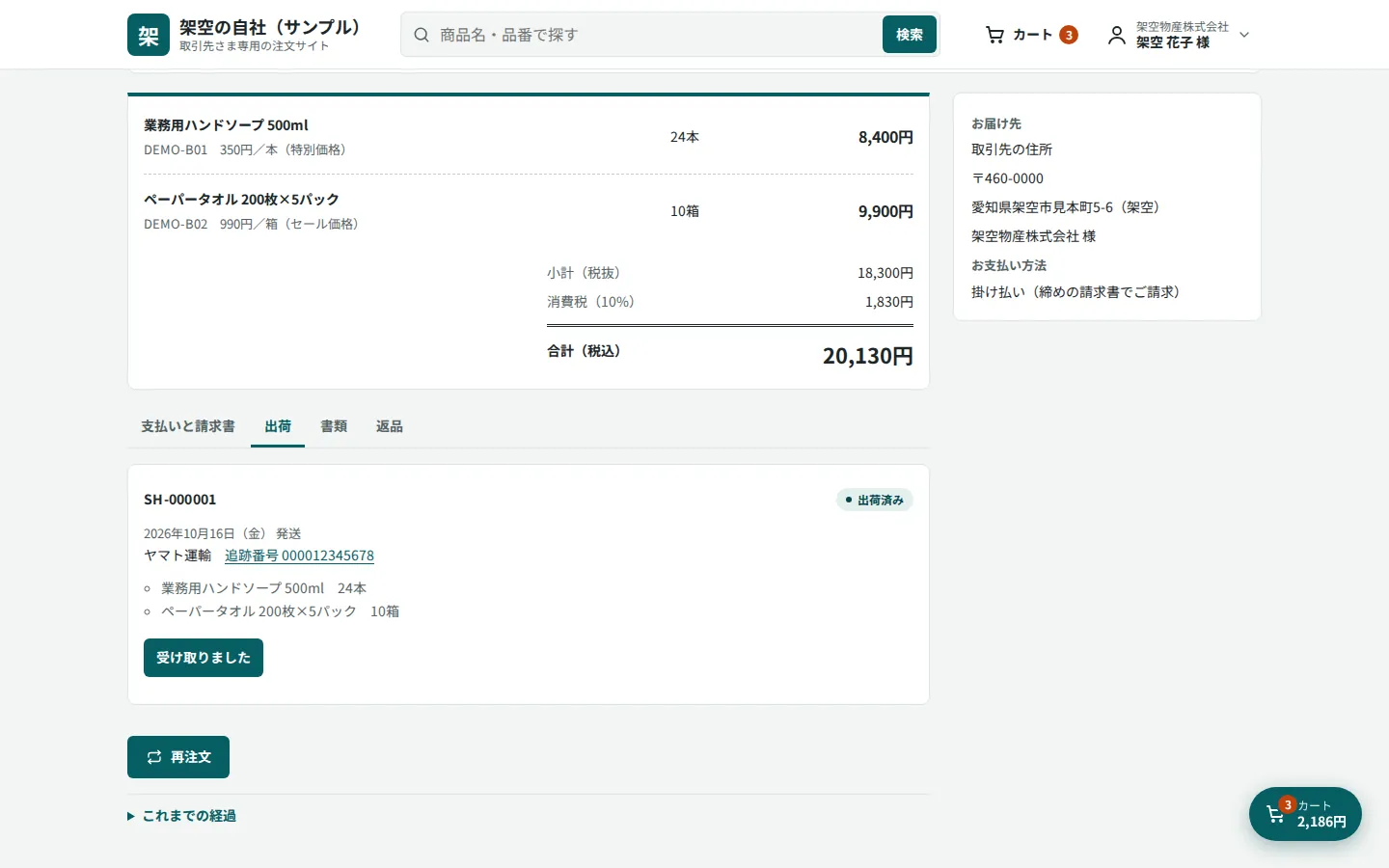
    Shipping section in order details on the customer site, showing Yamato Transport, the tracking number and the shipped products

Note: Illustrative screen (fictional data).

In the admin console

A sales order list that shows the next action

Shows counts by status and the next action for each order.

Sales order list in the admin console, with count buttons for each status and a table of order number, customer, status, next action, amount and order date

Warehouse and handling assigned automatically

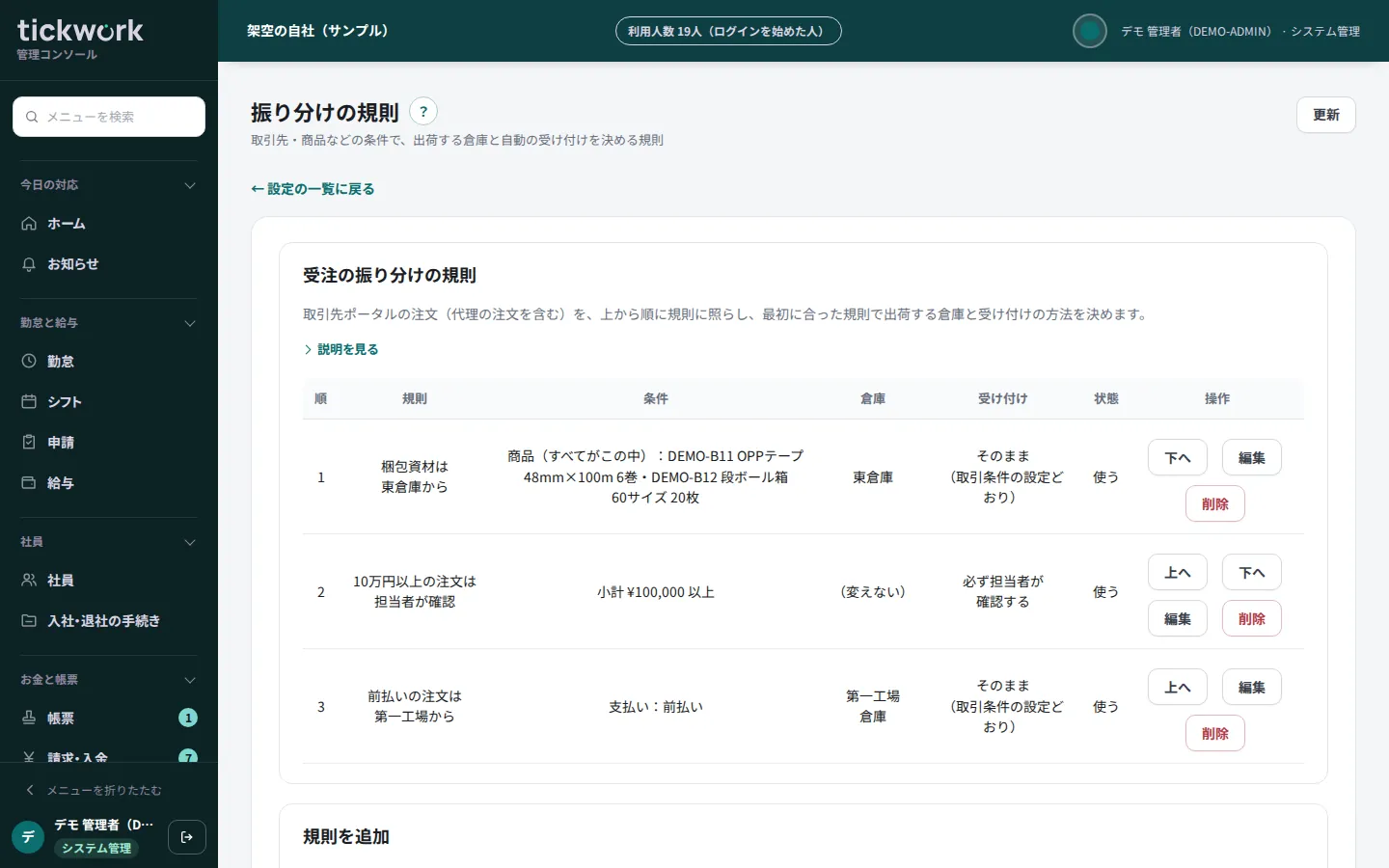
Determines the shipping warehouse and whether review is needed by customer, product, amount and other conditions.

Allocation rules in the admin console: a list of rule names, conditions, warehouses and acceptance methods

Compare sales with last year

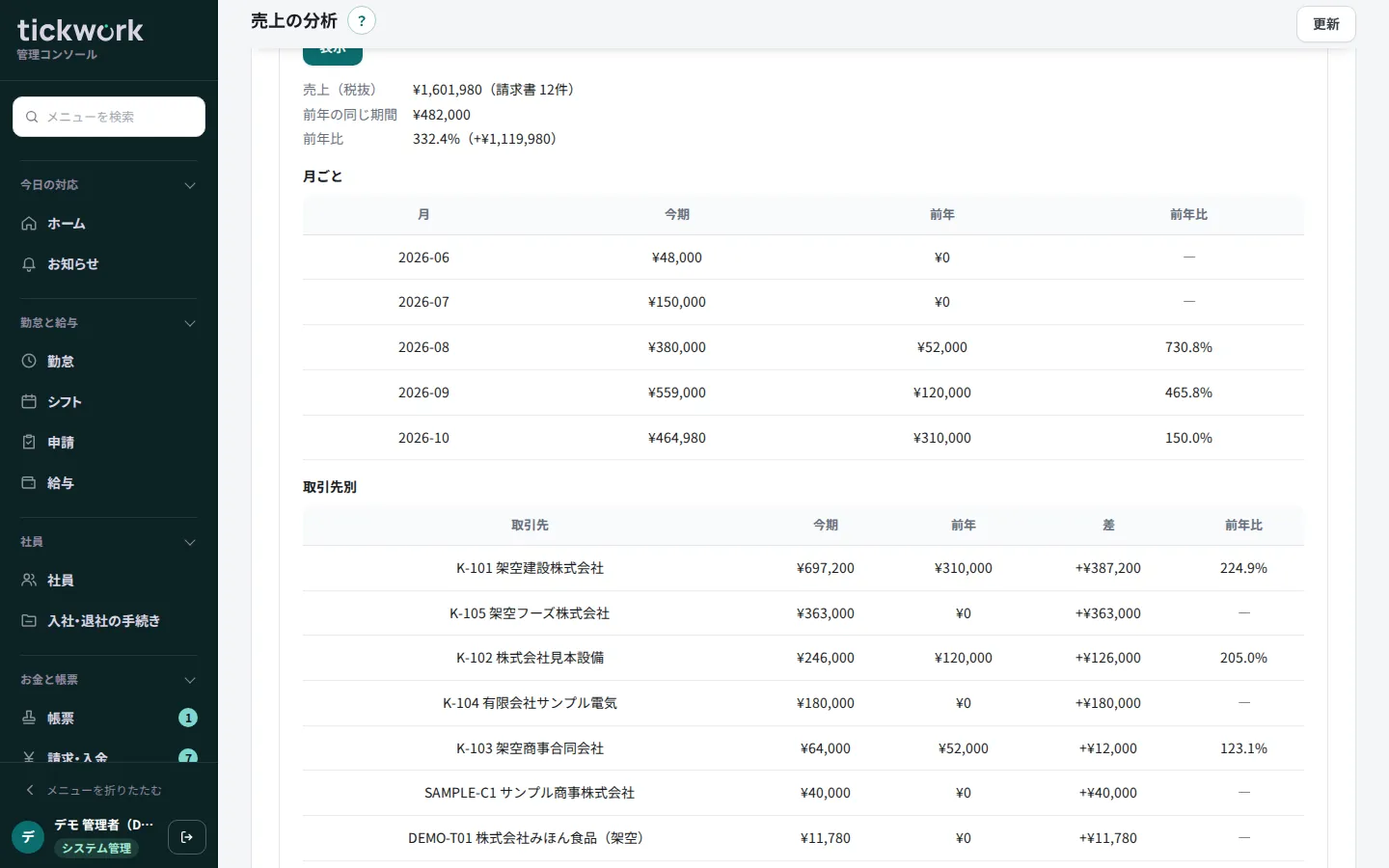
Compares sales (excl. tax) by customer, product and month with the same period last year.

Sales analysis in the admin console: sales, the same period of the previous year and year-on-year ratio, with tables by month and by customer

Note: Screens are for illustration purposes only (the data shown is fictional).

Order status, shared with customers in the same way

Customers can also check progress on screen, reducing inquiry calls.

SO-000009 Mihon Foods Co., Ltd. (fictional)

  1. Order
  2. Quotation
  3. Request
  4. Approval
  5. Issue
  6. Shipping
  7. Tracking number
Your order has been received

Order placed on Friday, October 16. Prepayment (bank transfer), total ¥22,418 (incl. tax).

Note: Screen image (fictional data). The display differs from the actual screen.

Customers order from a dedicated site

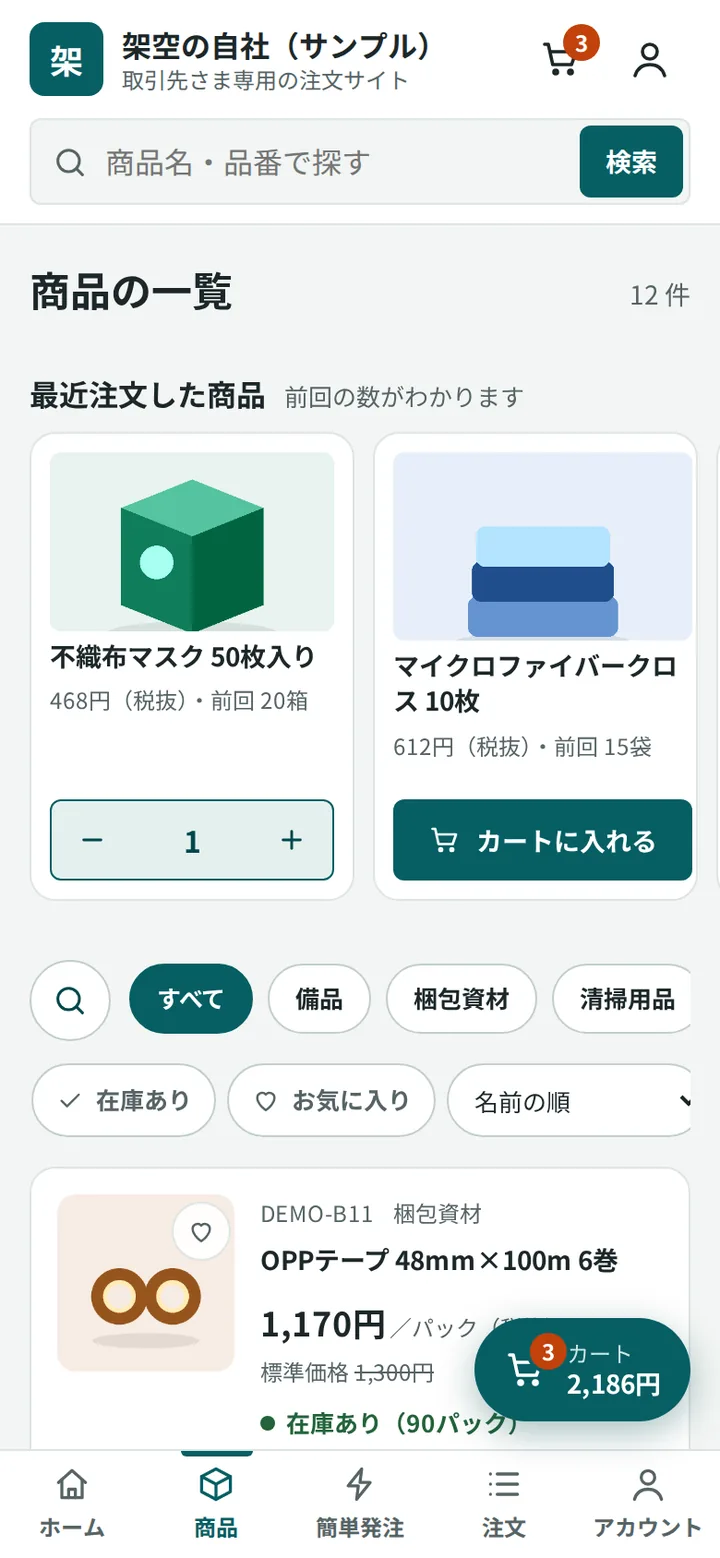
Order from a browser on a PC or smartphone. Products and prices can be set per customer.

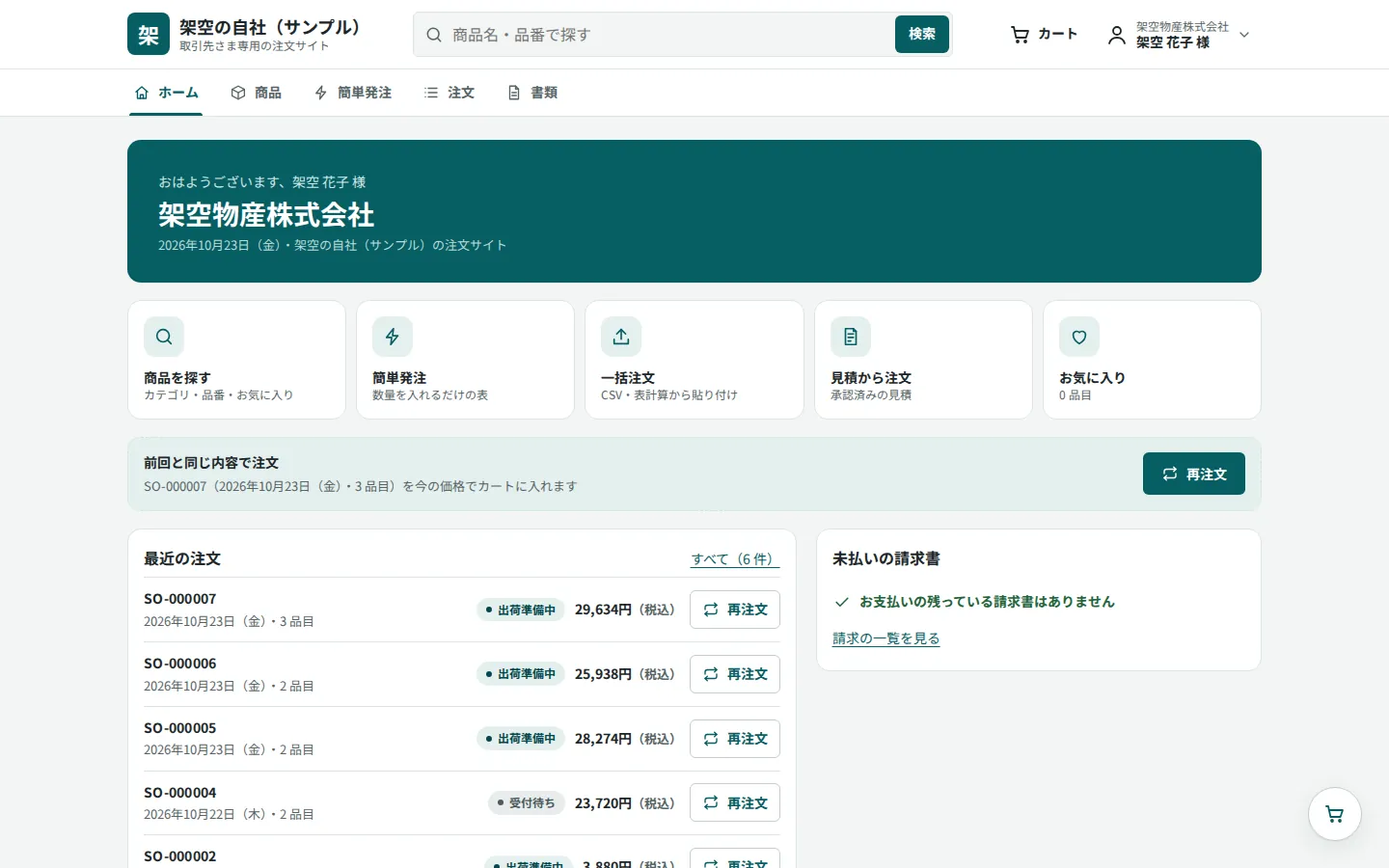
Reorder from the home screen

The first screen offers reordering of the previous order and shows unpaid invoices.

Home of the customer site, showing the customer name as a heading, cards for frequent actions, Order the same as last time, recent orders and unpaid invoices

Prices shown per customer

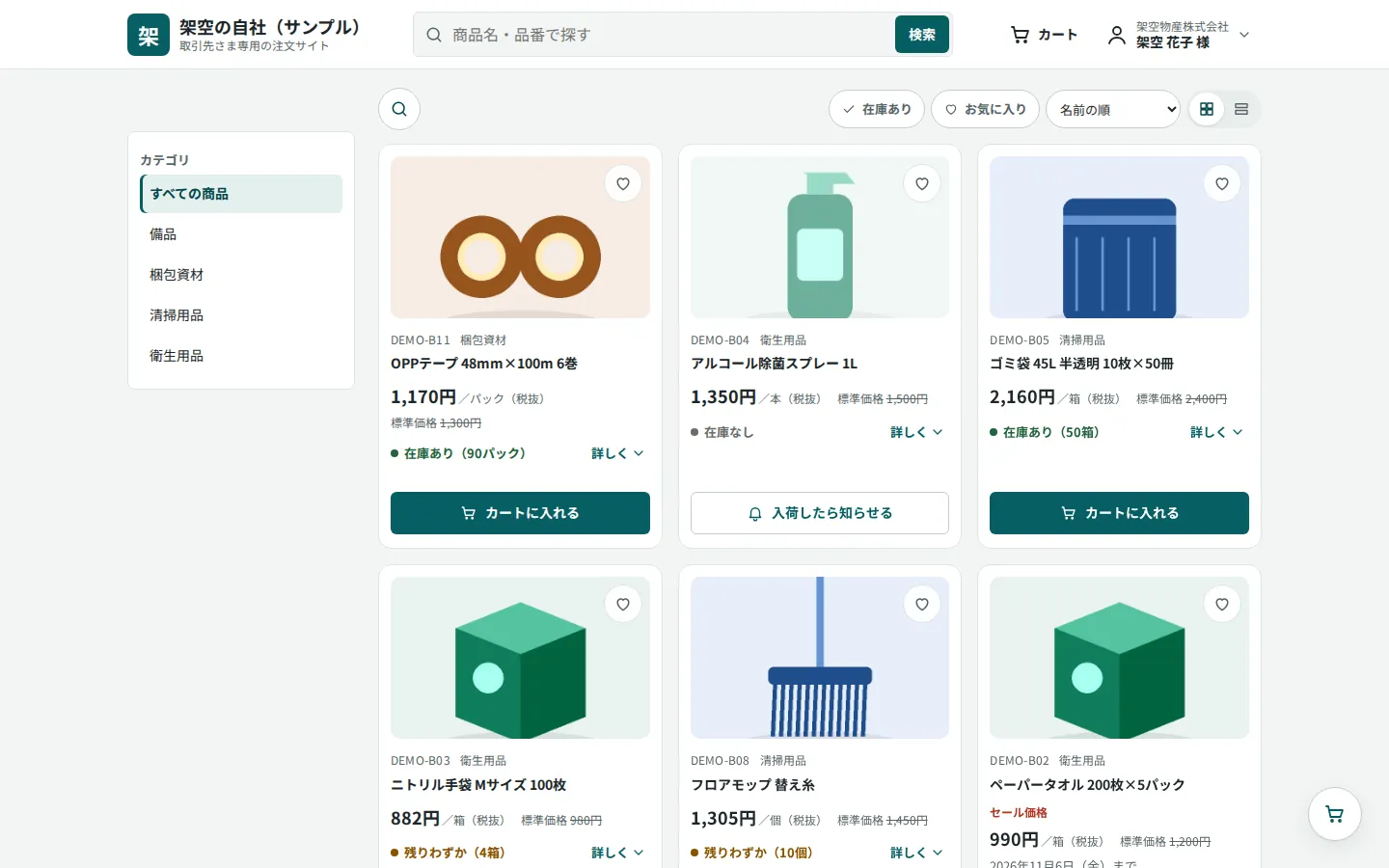
Shows discount rates, special prices, sale prices and approximate stock.

Product list on the customer site, with categories on the left and cards showing the product image, item number, customer-specific price, stock and an Add to cart button

Prices and stock rechecked before ordering

Change quantities in the cart and order directly.

Cart on the customer site: a cart sliding in from the right with products, quantity − and + buttons, the total and Proceed to order

Progress and PDFs anytime

Shows shipping and invoice progress, with PDFs available for download.

Order details on the customer site, showing order line items and totals, invoice progress (quoted, invoice requested, awaiting approval, issued and payment confirmed) and PDF buttons

Credit sales: statement the following month

Order statements are prepared the day after the closing date, and approved invoices are also sent by email.

Invoicing on the customer site (credit terms), showing the order statement for October 2026, buttons for the statement PDF and invoice, and issued invoices

Note: Screens are for illustration purposes only (the customers and products are fictional).

  • Bulk orders by CSV or pasted tables, and quick ordering by quantity only
  • Order directly from a quote you sent
  • View-only accounts for customer administrators

Product list

  • Commercial hand soap 500 mlDEMO-B01, special price¥350
  • Garbage bags 45 L, translucent, 10 × 50 packsDEMO-B05, in stock¥2,160
  • Microfiber cloths, 10 pcsDEMO-B06, in stock¥612
  • Neutral detergent, commercial, 4 LDEMO-B07, in stock¥1,062
  • OPP tape 48 mm × 100 m, 6 rollsDEMO-B11, in stock¥1,170
  • Cardboard boxes, size 60, 20 pcsDEMO-B12, low stock¥1,485

Note: Screen image (fictional products and prices).

Before you use itNotes on AI reading, shipping and the customer site
  • AI reading of supplier invoices: if you exceed the free allowance, the screen asks you to confirm twice before running. Pages that fail to read are not counted. Manual entry is always free. For reading, invoice images are sent to an AI service provided by Google (FAQ).
  • Supplier invoices are registered after you review them (not automatically).
  • Prepayment and credit flows are determined by each customer's terms.
  • Confirm the import formats of shipping label software yourself as carriers change their specifications. There is no automatic integration with carrier systems.
  • The customer site is available once enabled under Features in use (使う機能) in the admin console.
  • Receiving purchased goods updates the product's purchase unit price to the latest purchase price. Rental items are not included in inventory value.

Please feel free to contact us

We will ask about your number of users and the features you need, and advise you on how to proceed with implementation.

  • Free 30-day trial
  • No card required

If you would like to review materials first, please request materials (we will send a PDF by email).

Free 30-day trial
Contact us
Try free for 30 days Contact us