This page is a translation of the Japanese page. Inquiries and support are handled in Japanese. The admin console is available in Japanese only; the employee app supports 日本語, English, Tiếng Việt, 中文(简体), 中文(繁體), 한국어 and नेपाली.

Tickwork Projects

See work progress at a glance

Share schedules, documents and issues with partner companies too. Works for any industry.

Internal chat included (with calls, announcements and schedules)The first three steps and pricing
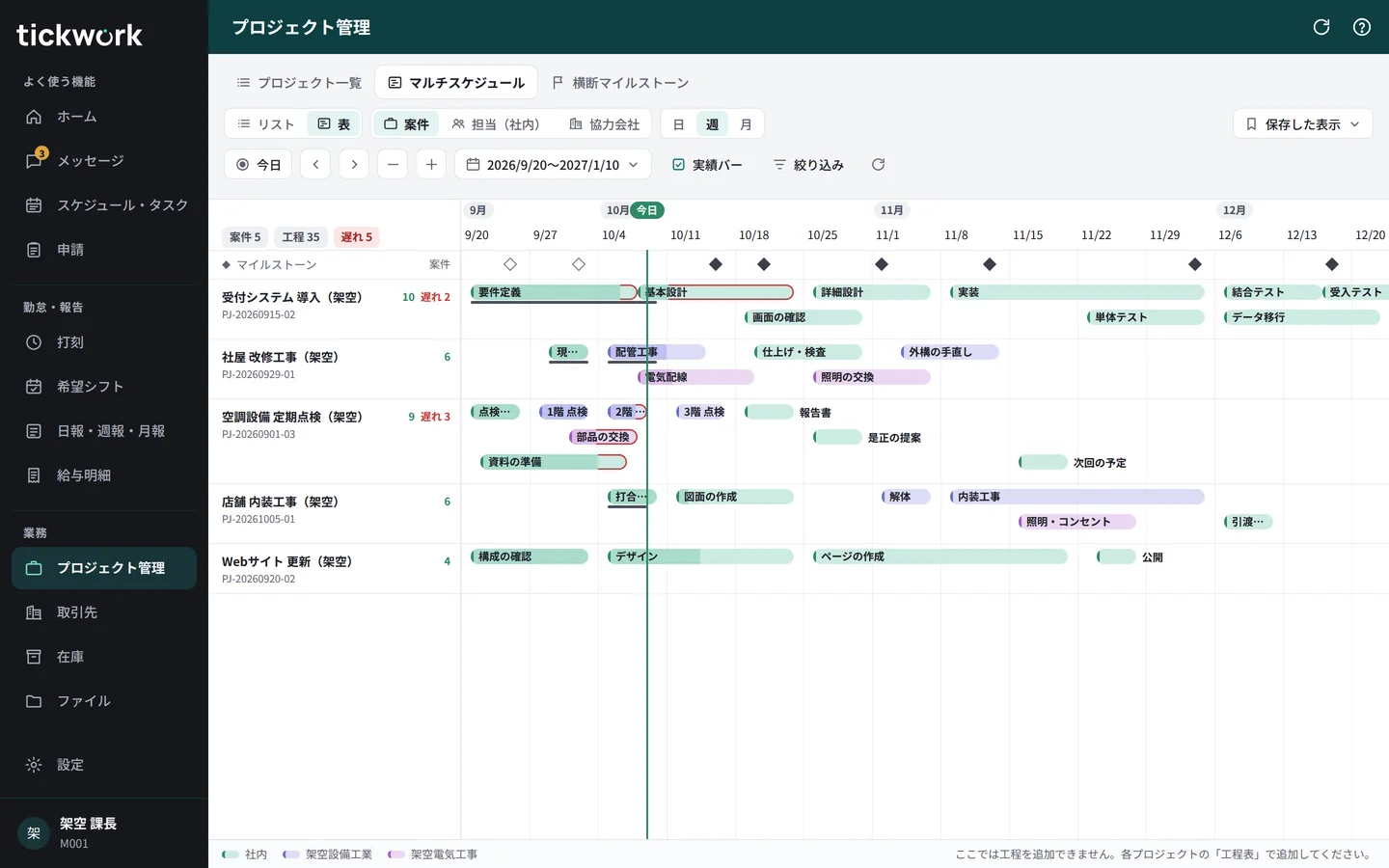
Multi-schedule (table) in the employee app: tasks from five projects (system implementation, renovation work, periodic equipment inspection, interior work and website update) arranged on a single timeline, with milestones, a line for today and the number of delayed tasks

Note: Screens are for illustration purposes only (the data shown is fictional).

The first three steps

After you apply, you can start using the service with these three steps, without any other setup.

  1. Create a projectYou can start with just a name.
  2. Add one file or photoAdd a photo, drawing or document PDF.
  3. Create an issue and assign itWho will fix it and by when is shared with everyone involved.

Tickwork Projects pricing

  • Up to 10 users¥6,000/month¥6,600 incl. tax
  • 11–30 users¥12,000/month¥13,200 incl. tax
  • 31–50 users¥18,000/month¥19,800 incl. tax

Prices exclude tax. Annual payment equals 11 months of the monthly fee. If you use two or more modules, Tickwork All-in-One offers better value.

From planning to progress tracking, in a single workflow

  1. 1STARTShare the schedulePut tasks, assignees and deadlines on the schedule (Gantt chart). Your staff and partner companies see the same plan.
  2. 2Communicate with partner companiesExchange messages and files by chat with invited partner companies.
  3. 3Photos on the spotPhotos taken on a smartphone are automatically collected in the project's Photos section.
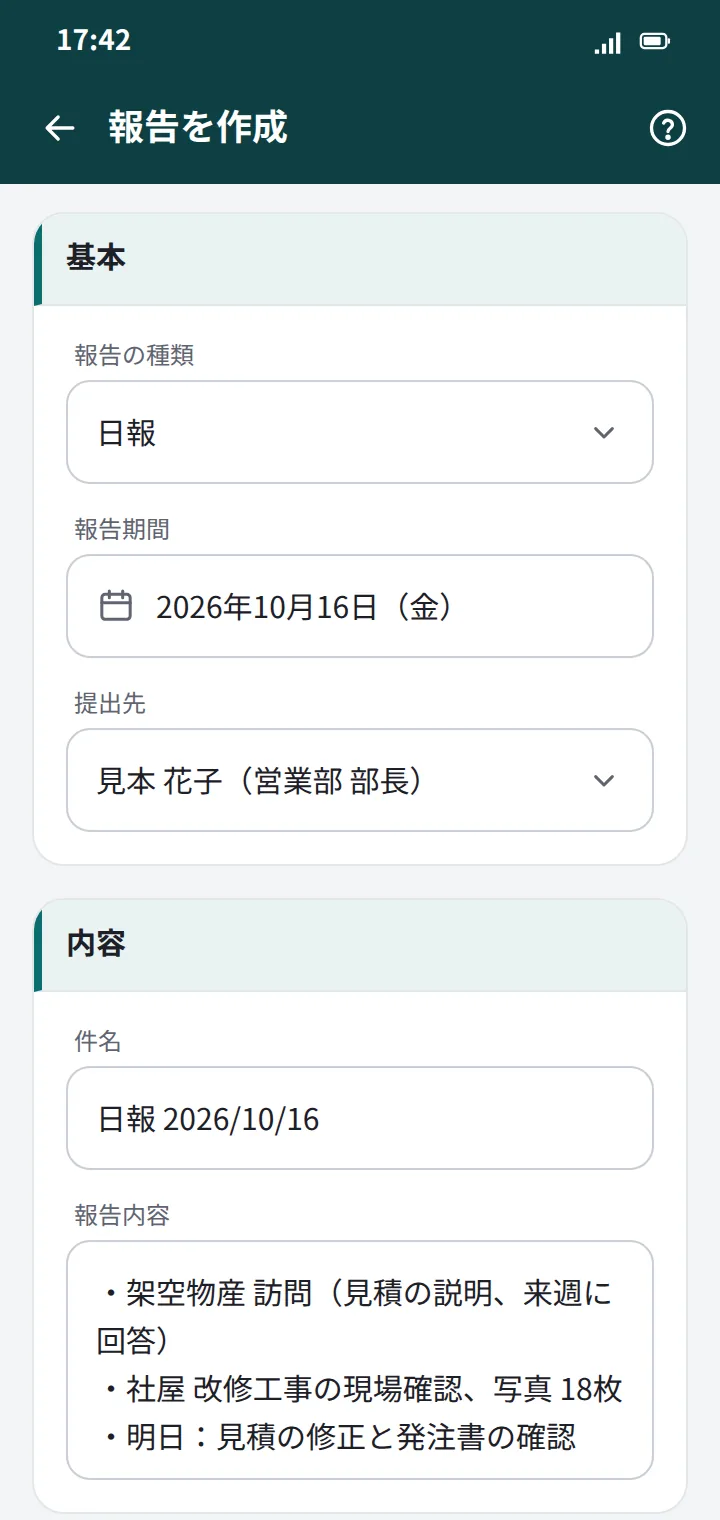
  4. 4Daily reportsReport the day's work and photos from a smartphone.
  5. 5Progress at a glanceReports and the schedule show delayed tasks immediately.
GOALCommunication and reports in one place, so progress is always visible

Schedules, photos, issue pins and profit and loss in one project

Scroll to switch screens in sequence.

  1. Schedule

    Tasks, assignees and deadlines on the schedule

    Set the internal person in charge, partner company and planned dates for each task.

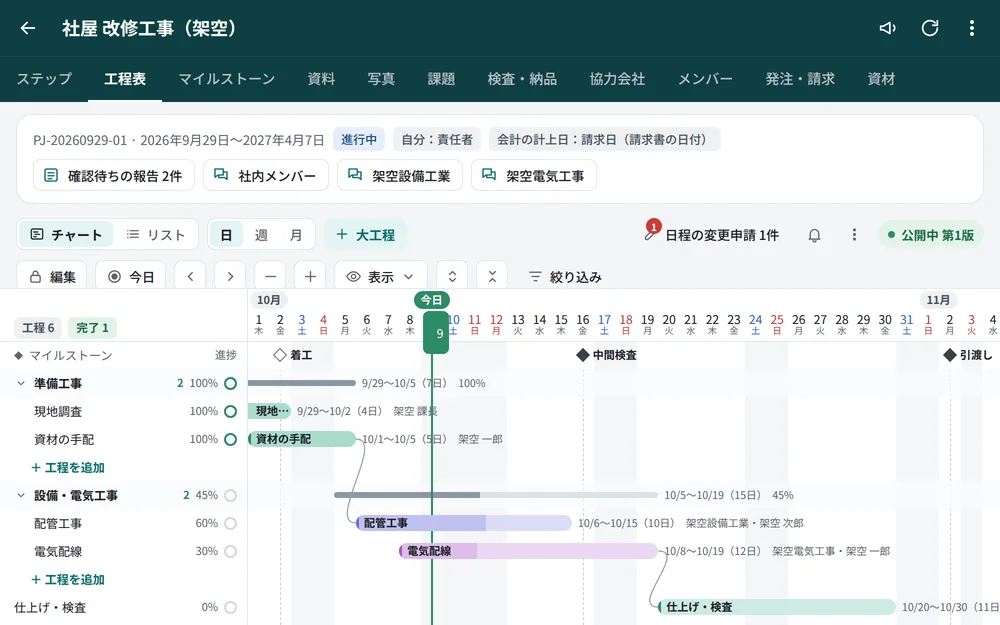
    Schedule in the employee app: tasks listed under task groups, with horizontal bars color-coded for your staff and each partner company, milestones and a line for today
  2. Multi-schedule

    View projects in progress together

    Shows multiple projects on one timeline, with the number of delays.

    Multi-schedule table: tasks from five projects arranged on a single timeline, with milestones and a line for today
  3. Photos and electronic photo blackboard

    Photos collected automatically

    Photos sent in reports and chat are organized into the project's Photos.

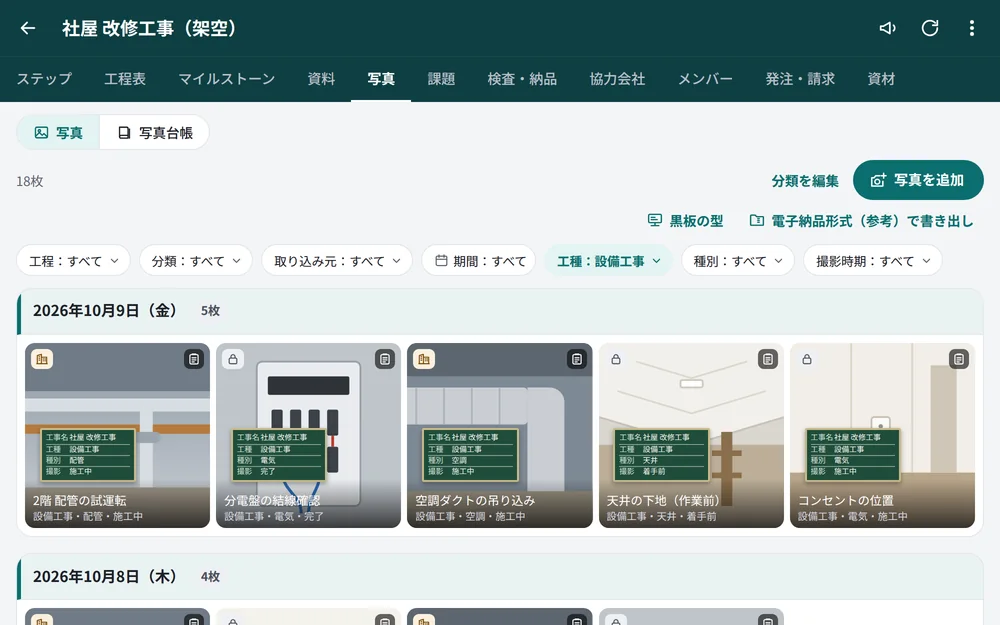
    Photo screen of the employee app: photos arranged by date taken, with the electronic photo blackboard visible in photos taken with it
  4. Waiting to send

    Batch sending, even with a weak signal

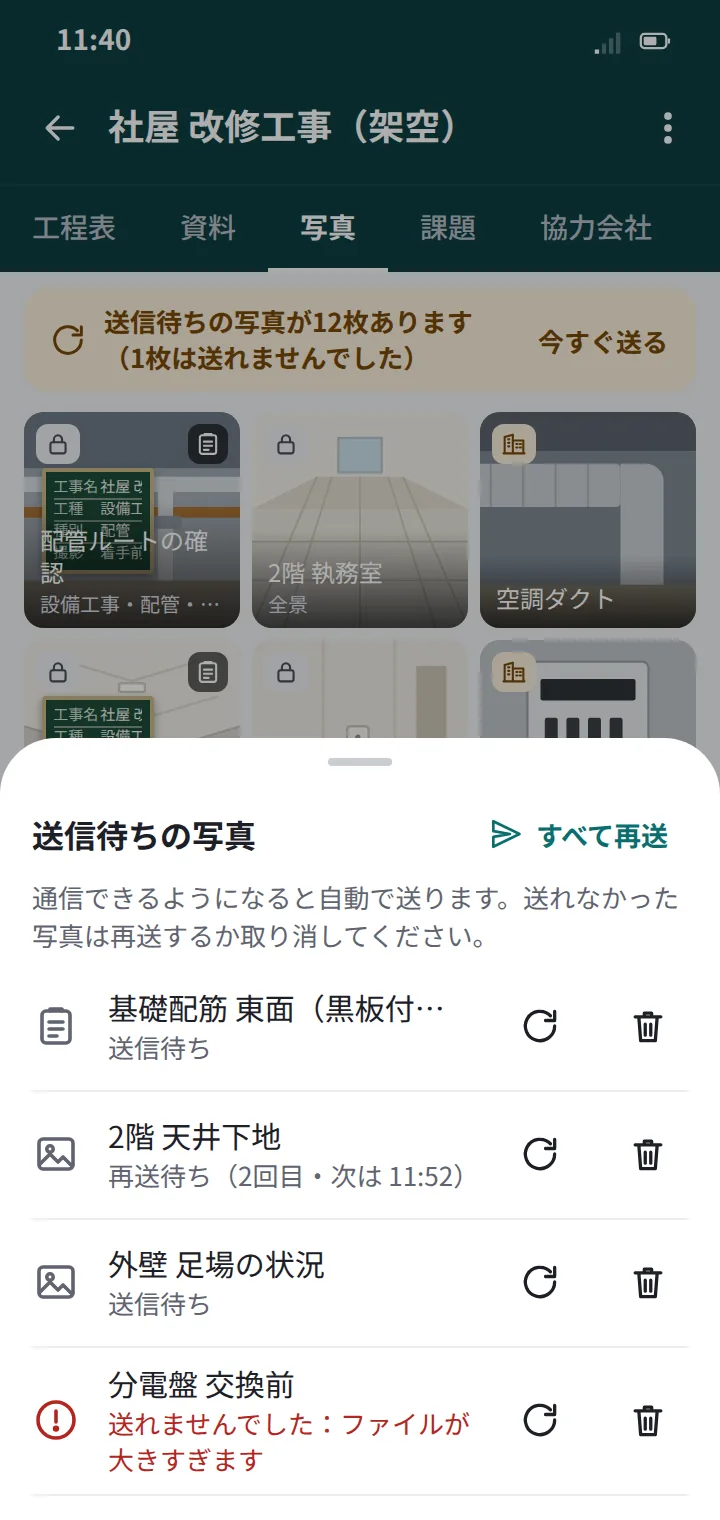
    When the connection returns, pending photos are sent automatically.

    Project photos on a smartphone: a banner showing 12 photos waiting to be sent, and a list of photos waiting to send, awaiting resend and could not send
  5. Drawing issue → issue

    Place a pin on a drawing to create an issue

    Adding a comment and photo creates an issue automatically.

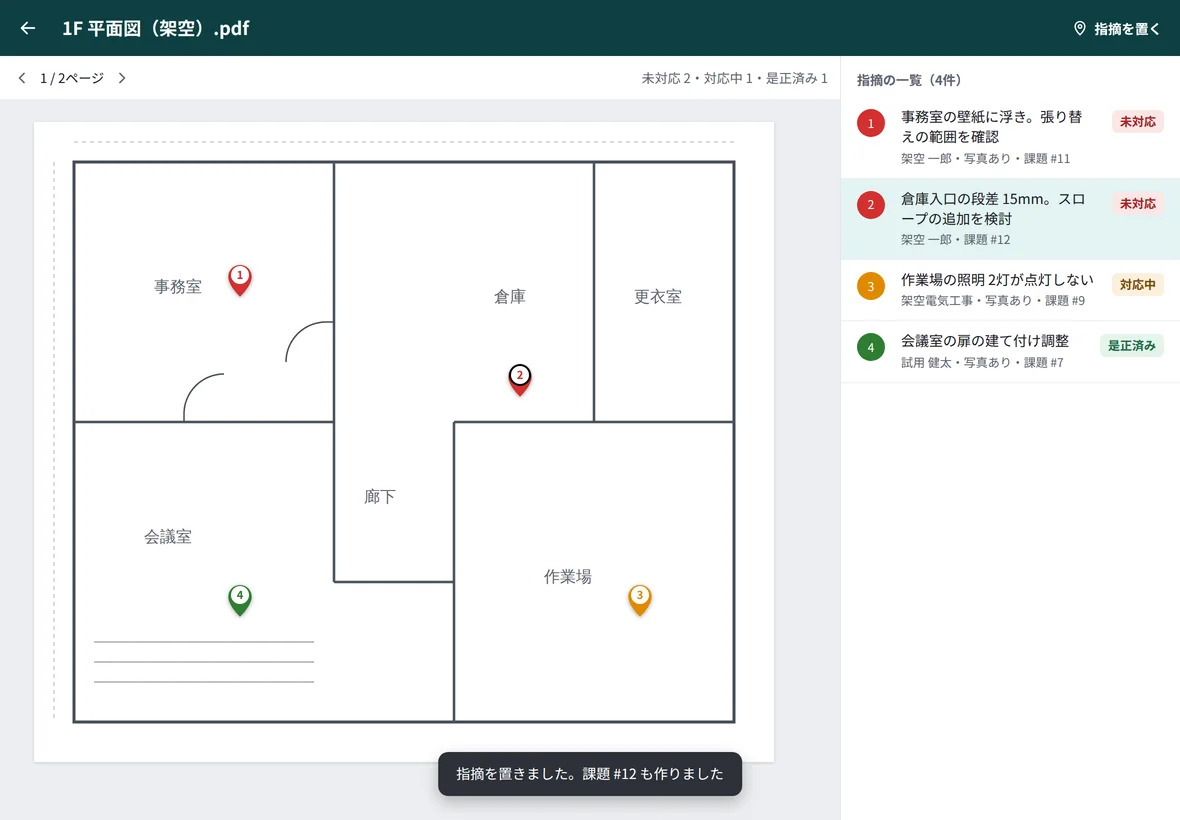
    Drawing issues on a tablet: numbered pins on the drawing, the issue list on the right, and the notice “Pin placed. Issue #12 was also created.”
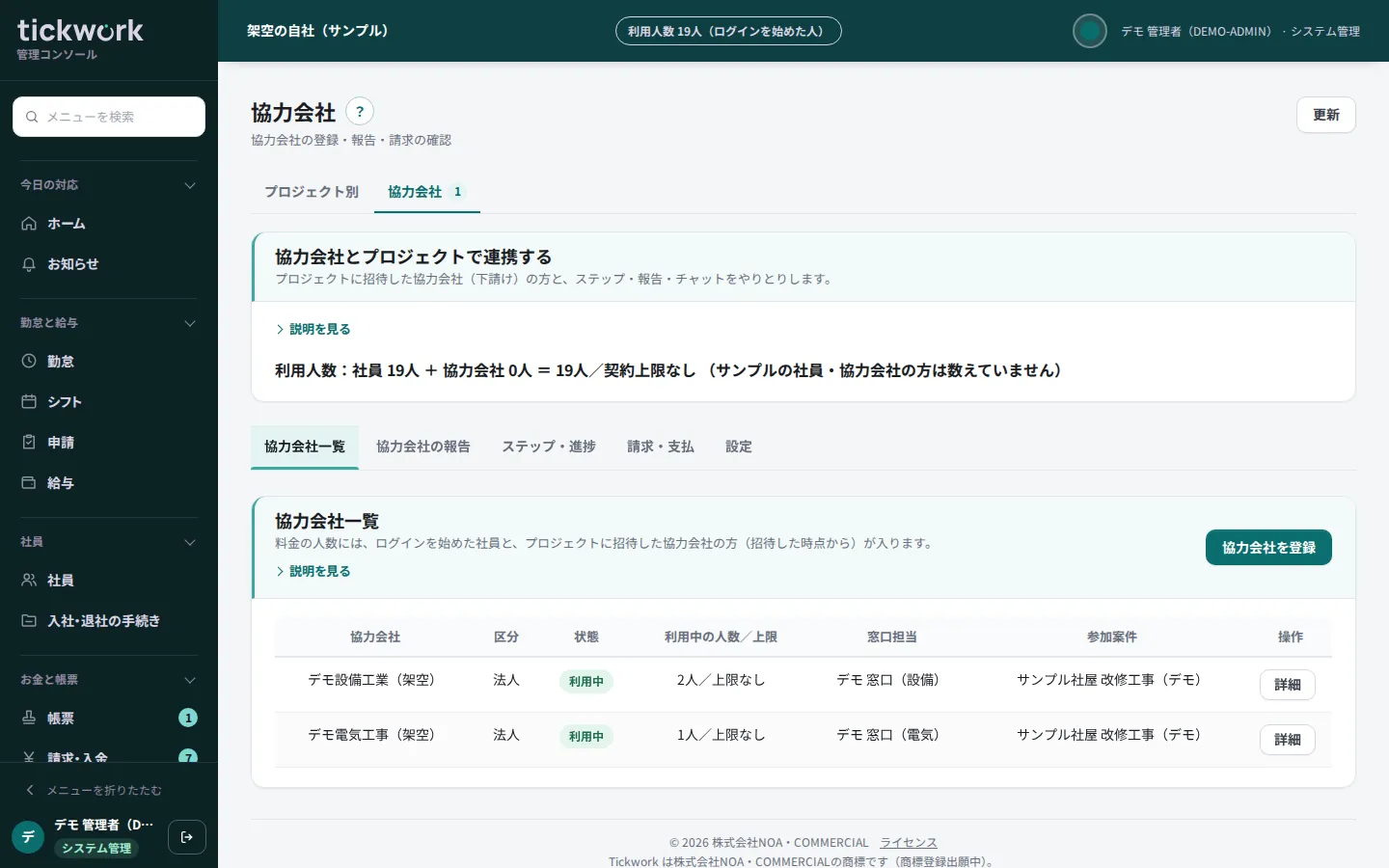
  6. Partner companies

    Invite partner companies to work together

    They can use only projects they participate in, and are not visible to other partner companies.

    Partner companies in the admin console: category, status, number of active users, primary contact and participating projects for each partner company
  7. Profit and loss

    Sales and costs by project

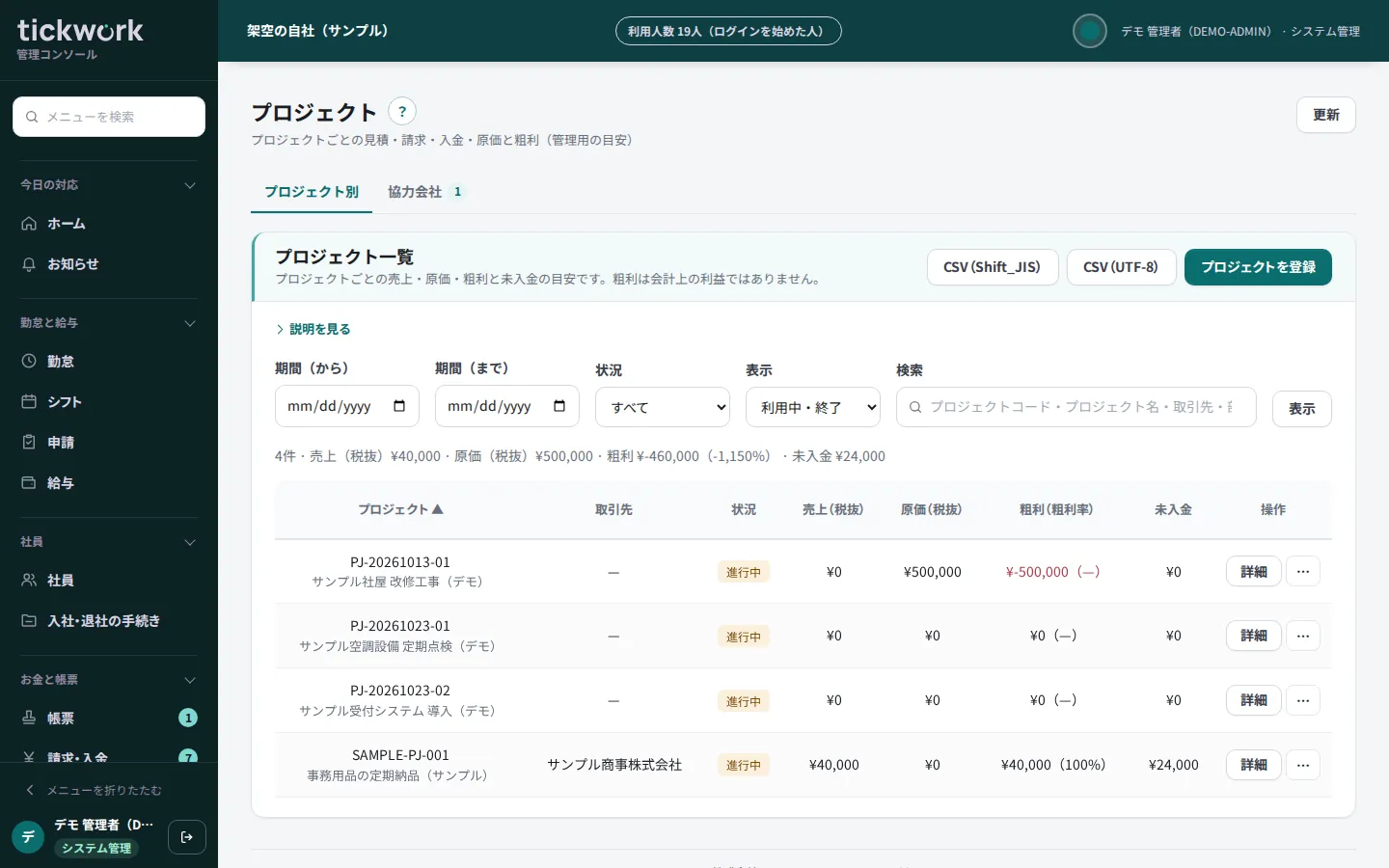
    Totals business documents and expense claims and lists estimated gross profit and unpaid amounts.

    Project list in the admin console: sales, costs, gross profit and unpaid amounts by project

Note: Illustrative screen (fictional data).

Drawing issue pins become issues directly

Status is reflected in both the drawing and the issue list. Tap a pin to try it.

1st floor plan (fictional)

Remaining issues: 3
  • #1215 mm step at the warehouse entranceOpen
  • #9Workshop lighting, 2 fixturesIn progress
  • #7Fit of the meeting room doorOpen

Note: Screen image (fictional drawing and issues). Pressing a pin changes its status in the order Open → In progress → Corrective action taken.

Tasks and schedules

Tasks, assignees and deadlines, shared on the schedule

See delayed tasks at a glance. Manage key dates with milestones.

  • Schedule (Gantt chart)

    Drag bars in "Edit" to change dates, and apply all at once with "Save".

  • Assignees and progress

    Assign each task and record progress from 0 to 100%.

  • The same schedule shared with partner companies

    "Publish" shows the schedule to partner companies. Other companies' tasks appear only as "Other company".

  • Reports, review and return

    Partner companies report with photos, and you confirm or return them.

Templates and multi-schedule

Start with templates, and view everything on one schedule

Choosing a template sets up tasks, document folders and photo categories.

  • Building and interior work / Facilities and maintenance / IT and system development / Blank
  • Save your projects as company templates
  • "Multi-schedule" shows ongoing projects in one chart
  • Check milestones together in "Cross-project milestones"
Schedule of a single project in the employee app: tasks listed under task groups, with horizontal bars color-coded for your staff and each partner company, progress, task dependencies, milestones and a line for today

Note: Screens are for illustration purposes only.

Files and photos

Share files in folders, and photos are collected automatically

Selected photos can be output as a photo ledger PDF (2, 3 or 6 per page).

  • Choose what each folder shares with partner companies
  • Uploading with the same name creates a new version. Previous versions are kept
  • View PDF, photos, Word, Excel and PowerPoint in the app
  • Online editing of spreadsheet files is included in Tickwork All-in-One for 11 or more users (a ¥3,000/month option for Single-module plans and Tickwork All-in-One for up to 10 users)
Photo screen of the employee app: photos are arranged by date taken, and photos taken with the blackboard show the electronic photo blackboard. Photos can be filtered by task, category, import source and period, as well as by the blackboard's work type, category and timing

Note: Screens are for illustration purposes only. Photos with the blackboard were taken with the electronic photo blackboard in the features for construction.

Photo upload and ledgers

Even with a weak signal, your photos get through

  • Batch sending of photos

    Queued as pending and sent. The same photo is never registered twice.

  • Photo ledger with cover page

    Sort by date taken, task and category, add a cover page and output as PDF.

  • From drawing issue pins to issues

    Status is reflected in both the drawing and the issue.

Project photos on a smartphone: a banner saying “12 photo(s) waiting to be sent”, and a list of photos (“Waiting to send”, “Awaiting resend” and “Could not send”, with “Resend” and “Cancel” buttons)
Photos waiting to be sentResend unsent photos one by one
Drawing issues on a tablet: numbered pins on the drawing, the issue list on the right (status and issue number), and the notice “Pin placed. Issue #12 was also created.”
Drawing issue pins → issuesDrawing and list side by side

Note: Screens are for illustration purposes only (the data shown is fictional).

Drawing viewer

Mark up drawings, measure, and take off quantities

Tap a document PDF or image to open it. No extra settings or fees.

  • Markups

    Add pens, shapes, revision clouds, text and more, choosing who can see them.

  • Scale and measurement

    Measure lengths, angles and areas. Areas are shown in m² and tsubo.

  • Quantities via CSV

    Tap to count by symbol and export counts, lengths and areas as CSV.

  • Version comparison

    Compare old and new versions side by side or overlaid in different colors.

  • Opens even without a signal

    Saved for offline use; markups are sent when the connection returns.

  • Smartphones, tablets and PCs

    Even large PDFs such as A0 run smoothly, adapted to each device.

Drawing search and drawing numbers

Search by text in drawings, open by drawing number

When you register a PDF drawing, the text and lines in it are read.

  • Search text in drawings

    Open the page from any drawing by room name, product number and more.

  • Open by drawing number

    Once a person confirms the title block candidates, drawings can be opened by number.

  • Confirming new versions

    Lists who pressed "Checked" and when.

  • Print to scale

    Creates PDFs sized for A4 to A0 paper.

Quantity takeoff and stock allocation

From quantities taken off drawings to quotations, budgets and orders

Link measured quantities to a takeoff template to total them through to amounts.

  • Drafts in one click

    Drafts quotations, execution budgets and purchase orders.

  • Stock reservation and stock out

    Stock-out amounts are added to the project's material costs.

  • Carry-over to new revisions

    Carried-over takeoffs are marked "Needs review" and are not used until reviewed.

Chat

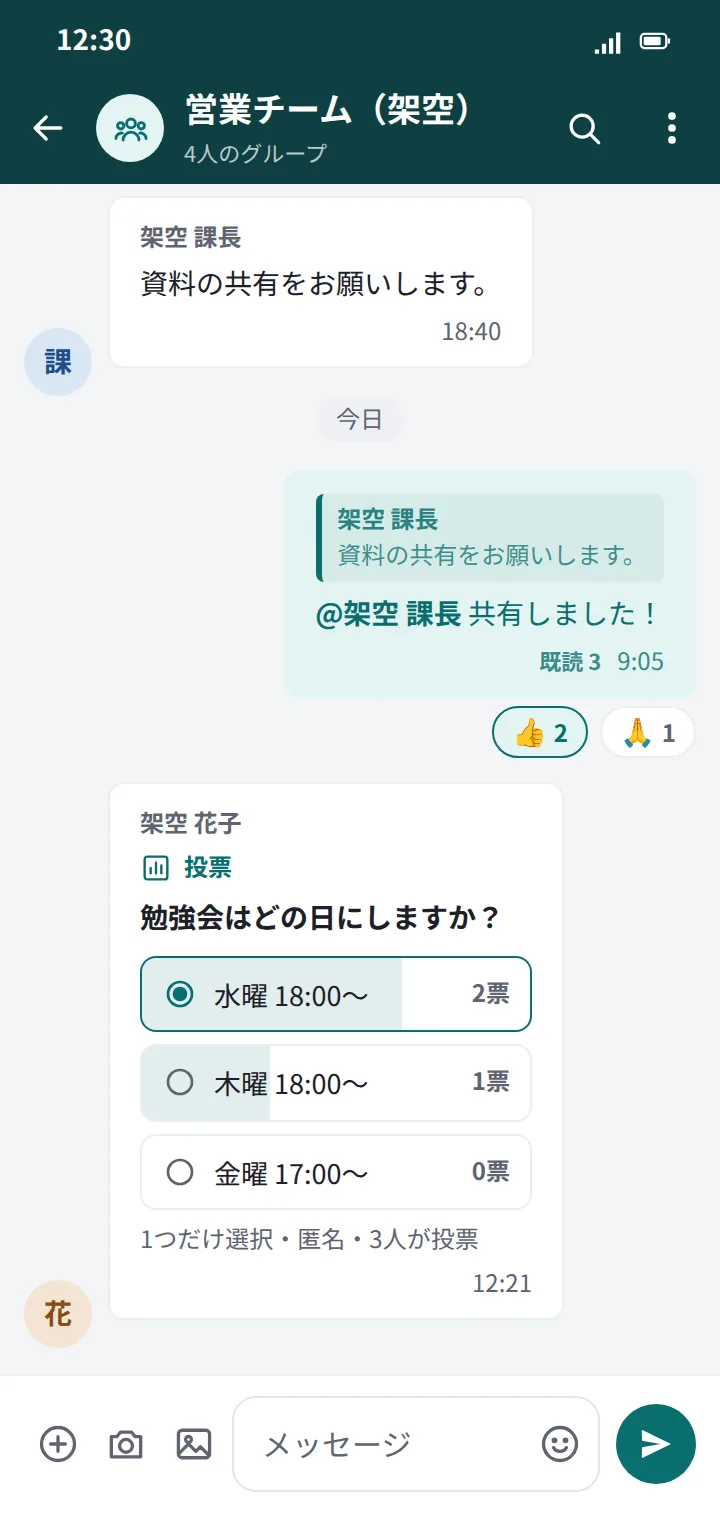
Separate chats for your staff and for each partner company

Groups are created automatically. Partner companies cannot see each other.

  • Direct chat with your staff, and voice calls (permitted per partner company)
  • Notifications also reach partner company members' smartphones
  • Internal features such as attendance and the employee directory are not visible to partner companies
  • Communicate with customers via chat-only invitations

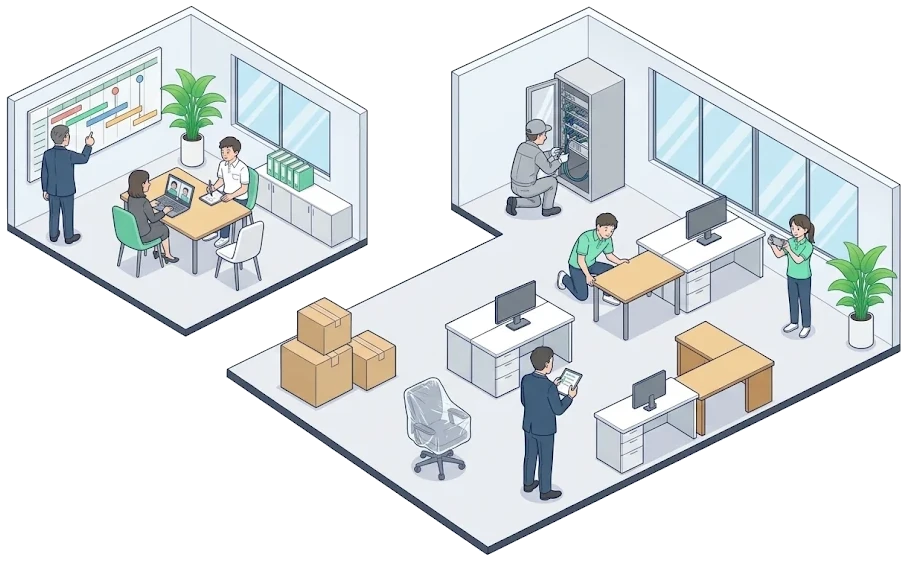
Note: This is an explanatory diagram. Names are fictional.

Issues, inspections and delivery

Issues, inspections and deliverables, all in the same project

  • Issues

    Manage with assignee, deadline and priority. Partner companies can also report their responses.

  • Inspection checklists

    Record pass/fail on a smartphone and turn failed items directly into issues.

  • Deliverable acceptance

    Records which version was accepted, when and by whom.

  • Meeting minutes

    Turns decisions into a PDF and action items into issues with one tap.

Quotations, sales orders and profit and loss

See gross profit for each project

Link quotations, invoices and expense claims to projects and compare budget with actuals.

  • From quotation to sales order

    When you convert a quotation approved in Business documents with Mark as won (受注にする), the status changes to Won.

  • Sales, costs and gross profit

    Paid and unpaid amounts are also shown by project (details).

  • Execution budget

    Set a budget per cost item and get a notice each morning when it may be exceeded.

  • Materials and parts used

    Totals quantities and amounts from stock-out records in Inventory management.

Orders, work completed, invoices and payments

From orders to partner companies to payment records, all connected

  1. Ordering companyOrderSend the approved purchase order
  2. Partner companyAcceptanceAccept / Return
  3. Partner companyWork completed% and amount in completion reports
  4. Ordering companyReviewReview the report and confirm work completed
  5. Partner companyInvoiceCreate an invoice (PDF)
  6. Ordering companyInvoice approvalApprove / Return
  7. Ordering companyScheduled paymentsList of payment due dates
  8. Ordering companyPaidRecord the payment date
  9. Ordering companyAccounting CSVOutsourcing costs / accounts payable
  • Check purchase order fields

    Checks required fields and whether the payment due date is within 60 days of the receipt date.

  • Partner companies create invoices

    Creates a PDF with a breakdown by tax rate from finalized work completed (出来高).

  • Quote requests and price negotiations

    Compare competing quotes and place orders. The history of price negotiations is kept.

  • Limit who handles amounts

    On the partner company side, only the primary contact can see amounts.

Any work with deadlines and assignees, in any industry

For detailed examples, see Usage examples and scenarios.

  • Construction and renovation

    Create a schedule from groundbreaking to handover quickly with a template (features for construction).

  • IT and system development

    Manage issues, acceptance tests and deliverable acceptance with external development firms.

  • Staffing and contract services

    Groups tasks and documents by client. Shifts are managed in Clock-in and attendance.

  • Design and production

    Share assets with freelance designers and record acceptance for each version.

  • Maintenance

    Provides inspection checklists and before-and-after photo ledgers.

  • Other industries

    Consulting, professional services, events and more can start from "Blank".

Feature packs, features for construction, partner company users, notesOpen only if you need them.

Industry-specific features at no extra charge

Choose only what you need under Settings → Projects → Industry feature packs (業種別の機能パック).

  • Construction, renovation and facility work

    Project owner decisions, corrective action reports, heat and rain alerts, worker rosters and more (details).

  • IT and system development

    Customer acceptance pages and acceptance certificates, SES and quasi-mandate settlement ranges and timesheet reports.

  • Design and production

    Tracks proofs by round, and customers can leave pinned comments on images.

  • Events

    Record rental item check-out and return by scanning.

  • Equipment maintenance

    Creates periodic inspection tasks automatically from the equipment register.

  • Manufacturing

    Judges pass or fail from measurements and creates inspection reports as PDF.

Note: All are set to "Do not use" at first. Companies that start with the construction setup have the construction pack set to "Use".

Features for construction included in the price

Construction, renovation and facility work companies can use them at no extra charge.

Electronic photo blackboard (for private-sector construction)

Shoot with the blackboard and organize by work type and timing

An electronic photo blackboard for private-sector construction. Blackboard details are also included in photo ledger captions.

Public works (work requiring J-COMSIA certification) are not supported.

  • Blackboard templates

    Choose the fields shown on the blackboard, such as work type, design value and measured value.

  • Checking for changes after shooting

    You can confirm within Tickwork that a photo has not been altered after it was taken.

  • Electronic delivery format (reference)

    Export a ZIP in an electronic delivery format, for reference in private-sector construction.

  • Even at sites without a signal

    Photos can be taken even at sites without a signal and are sent when the connection is restored.

Note: Photos with a blackboard can be taken in the iPhone, iPad and Android apps (not in the web version). Photos are resized automatically when saved (2048 px on the long side).

Construction pack

Project owner confirmations, corrective actions and heat measures, in the site management tab

  • Project owner's decisions

    Have the project owner confirm decisions such as colors, product numbers and additional work.

  • Before and after photos of corrective work

    Places before and after photos side by side in a corrective action report PDF.

  • Heat and rain warnings

    Sends notices the evening before, based on Japan Meteorological Agency forecasts and the heat stress index (WBGT).

  • Worker rosters and qualification expiry

    Creates rosters as spreadsheet files and notifies from 30 days before qualifications expire.

Site operations

Daily reports, material orders and corrective actions, handled without omissions

  • Missing daily reports

    Lists people and companies that have not yet submitted daily reports.

  • Material ordering deadlines

    The project lead is reminded until "Ordered" (発注しました) is pressed.

  • Corrective action reports from partner companies

    Photos taken after correction go straight into the corrective action report.

Partner companies join via invitation link

Partner company and contractor members log in from the same app as employees.

  • Invitations and primary contacts

    Invitation links and QR codes are valid for seven days and can be used only once. Each partner company has a designated primary contact.

  • Billable users

    Partner company members invited to projects are counted as billable users in the same way as employees and other users. There is no additional charge for this feature.

    • Partner company members are counted from the time they are invited (including those who have not yet logged in)
    • External people, such as business partners, invited to chat only are not counted
    • Users who have been suspended or deleted are not counted
    • Users requested by a partner company's primary contact who have not yet been approved are not counted
    • For details, see Pricing
  • Guide for partner companies

    We send contracted customers the Quick guide for partner companies (A4, one page, PDF).

Note: For terms of use for invited persons, see For partner company members and external users.

Before you use it

  • Gross profit is a management estimate calculated as sales (excl. tax) − cost (excl. tax), not accounting profit. "Won" is an internal management record and does not determine whether a contract has been formed. Labor cost is a management figure: work hours entered by employees (including from daily reports) multiplied by the company's hourly rate.
  • Tickwork does not make payments to partner companies or create transfer data for them. It does not judge whether purchase order and invoice entries or terms such as payment due dates comply with laws; confirm with your own practices and professionals. Only the format of registration numbers is checked. Set account titles in CSV for accounting software after confirming with your certified public tax accountant.
  • A warning appears when the quotation period is shorter than the Construction Business Act guideline.
  • Partner company clock-in and clock-out times are not recorded. Partner company members can use only the schedules, reports, chat and similar items of projects they participate in.
  • Photos and files sent in chat are deleted 30 days after sending. To keep them, use "Save to project" (プロジェクトに保存) to add them to the project's photos and documents.
  • The drawing viewer opens PDFs and images (PNG, JPEG, GIF, WebP). Convert CAD files to PDF before registering. Original files are not modified.
  • Only text in PDF drawings is read. Candidates such as drawing numbers are always confirmed by a person. Differences between two versions are not detected automatically.
  • Quantities are calculated from measurements the user takes on the drawing. Symbols are not counted and rooms are not detected automatically.

Please feel free to contact us

We will ask about your number of users and the features you need, and advise you on how to proceed with implementation.

  • Free 30-day trial
  • No card required

If you would like to review materials first, please request materials (we will send a PDF by email).

Free 30-day trial
Contact us
Try free for 30 days Contact us